
How to Find Your Trustpilot Review Link (the Evaluate Link)
· Peter Bednarek
Contents
Quick answer
Your Trustpilot review link is https://www.trustpilot.com/evaluate/ followed by your domain, for example trustpilot.com/evaluate/yourshop.com. Open your Trustpilot page, copy its address, and change the word review in it to evaluate. That link opens the write-a-review form directly, so it is the one your QR code should use.
Trustpilot gives every business two addresses that look almost the same:
trustpilot.com/review/yourshop.comis your profile, where people read reviews.trustpilot.com/evaluate/yourshop.comis your review form, where people write one.
The profile is what you get when you search for yourself, so it is what most people paste. A customer who scans a code pointing there sees your existing reviews and has to find Write a review on their own. The evaluate link puts the stars in front of them straight away.
The 30-second way
Open your Trustpilot page. Search for your business on trustpilot.com and open it. Don't confuse login for reviewers with login as a business (that one is covered below). Trustpilot keeps those two sections separate. Many options for getting Trustpilot materials are gated behind the business profile. The method below gives you a simple way to get your "get more reviews" link for free.
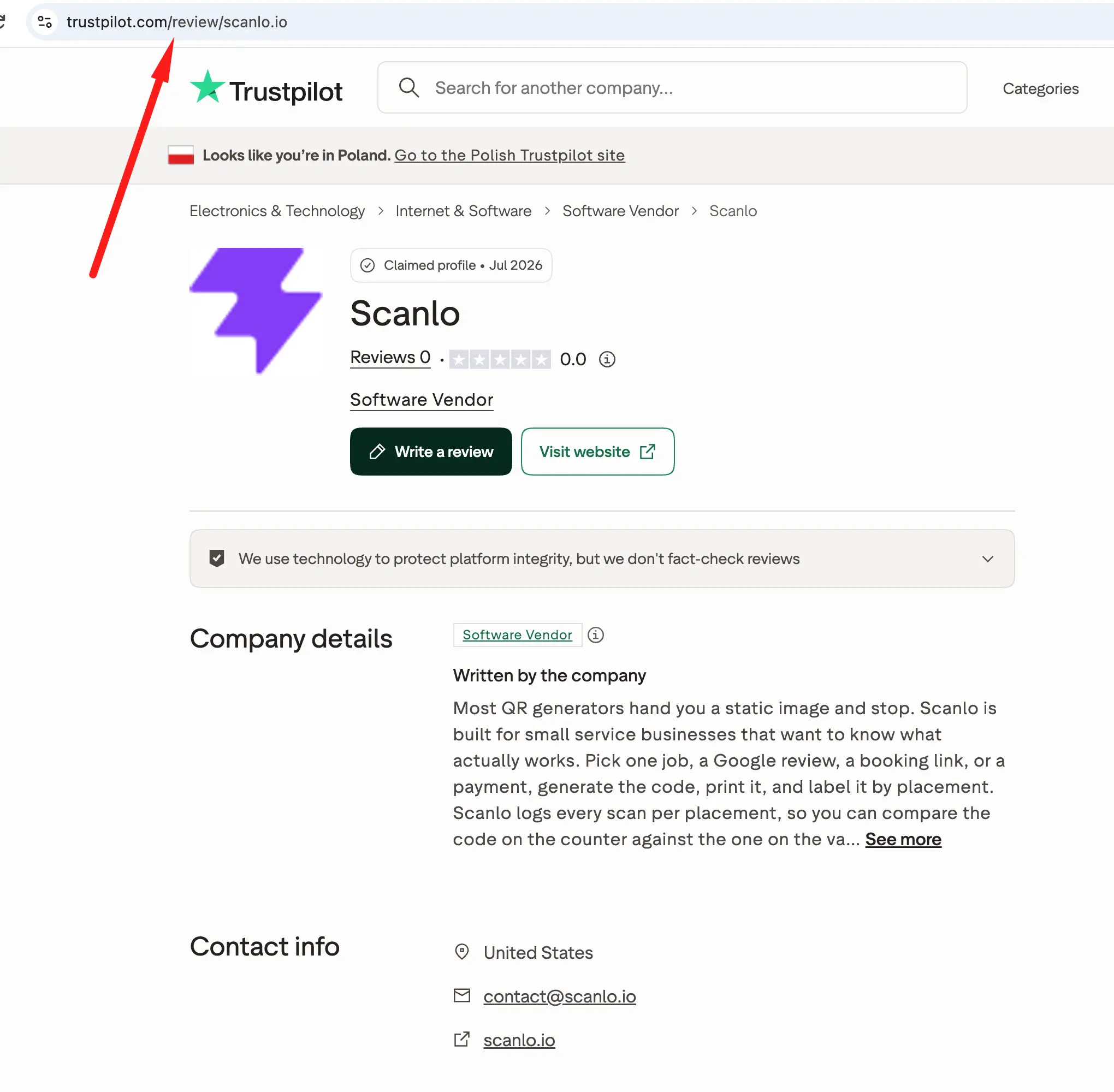
Copy the address. It looks like
https://www.trustpilot.com/review/yourshop.com. On a country site it may start withuk.or another country code, which is fine.Change
reviewtoevaluate. Leave everything else, including your domain, exactly as it is:https://www.trustpilot.com/evaluate/yourshop.com.
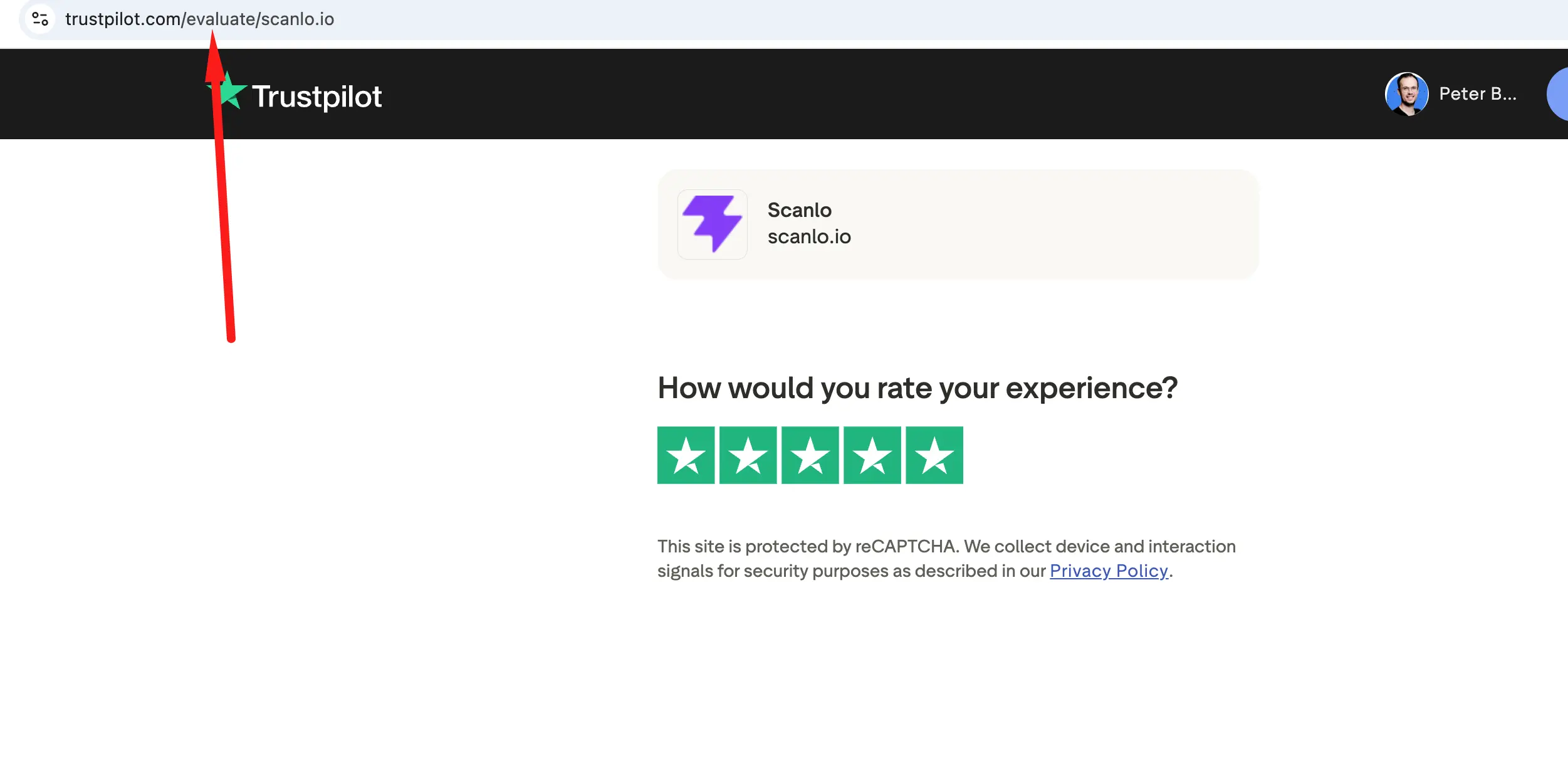
Test it on your phone. You should see empty stars and your business name. Trustpilot may ask the reviewer to sign in after they pick a rating: that is normal and happens for every business.
From your Trustpilot Business account
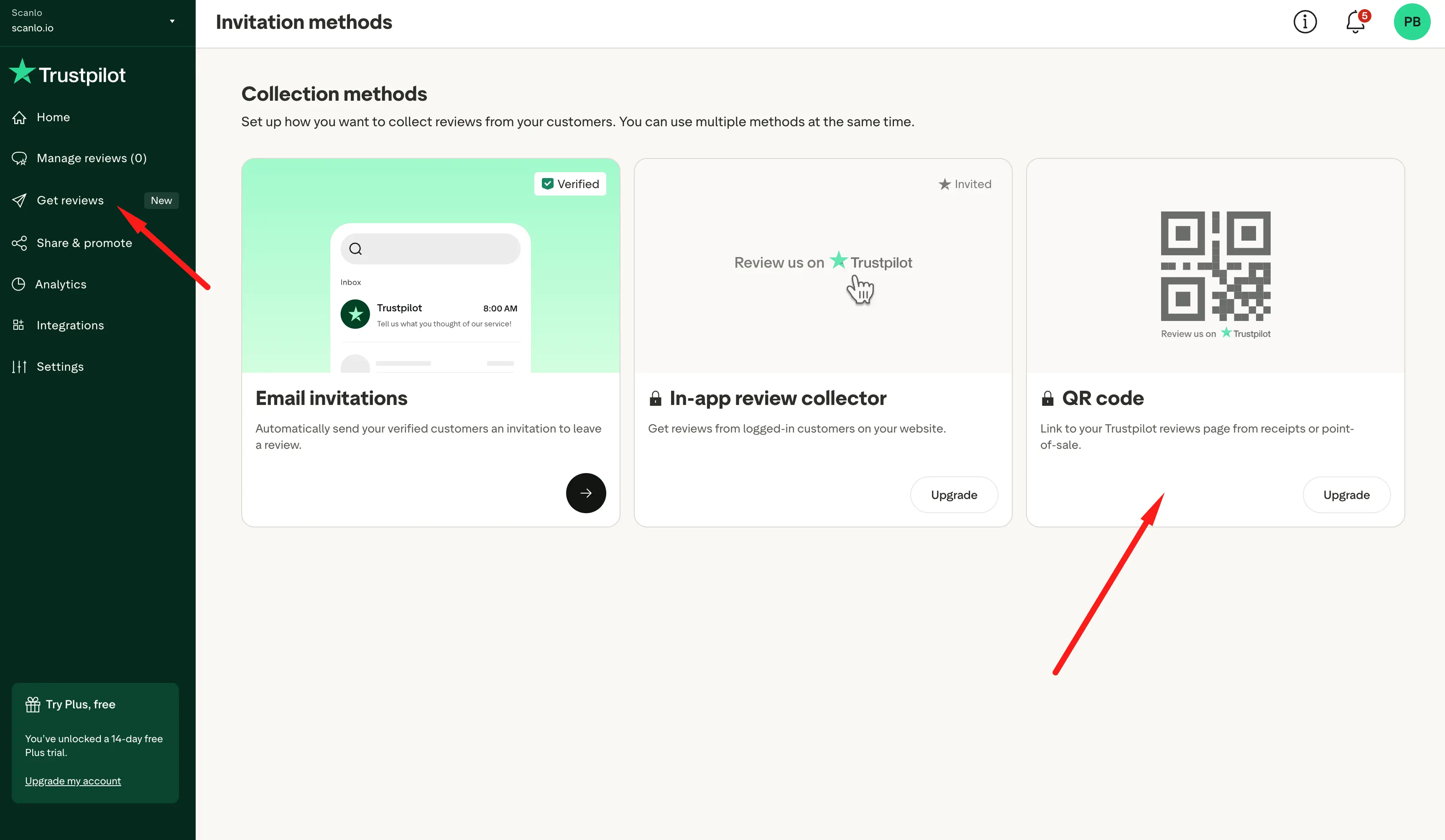
If you manage your page in Trustpilot Business, the same link is available under Get reviews, in the section for sharing a review link or QR code. It is the same evaluate address, so either route gives you the right link. Please note they require an upgrade to get the code. We need to put a disclaimer here - they indeed offer a free trial, which could give you that option, but we can't guarantee the QR code will work after the trial expires.
How can I change that Trustpilot evaluate link into a QR code for free
When you have a link to your 'evaluate' page, it's very easy to change it into a QR code and distribute it among your customers for free. Scanlo provides you with a simple QR code generator for getting Trustpilot reviews. No card is needed, no upgrade necessary. What's also important - codes are tracked, which means you get an overview how many customers scanned your sticker or desk stand.
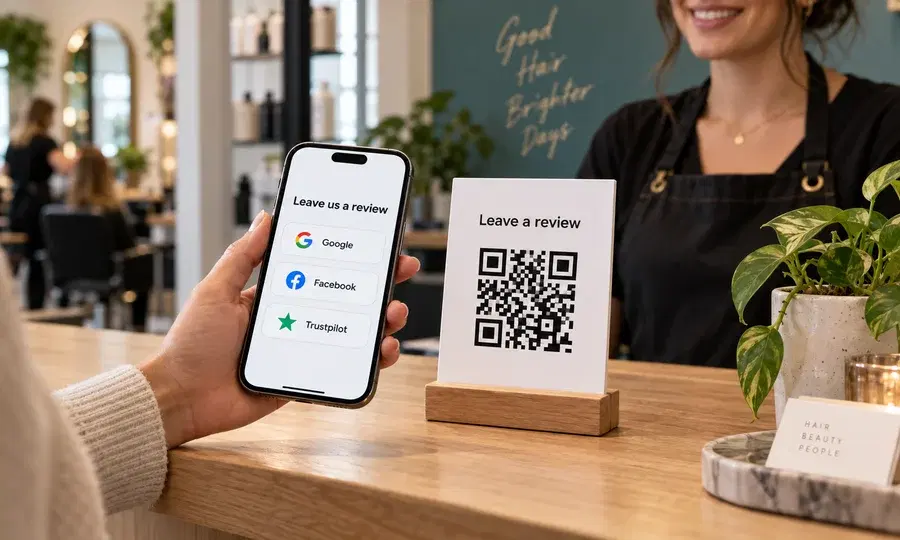
If you want to collect reviews on multiple platforms (Trustpilot, Google, etc.), you can also use a review QR hub. One code that merges all the review sites with an easy way to route the customer towards a review page.
What Scanlo does when you paste a profile link
When you paste a trustpilot.com/review/… link into Scanlo, a note appears under the field with a Use button showing the evaluate version of your link. One tap swaps it in. If you would rather keep the profile link, ignore the note: the code saves and works either way.
If you paste Trustpilot's homepage (trustpilot.com with nothing after it), Scanlo tells you, because a scan would land customers on Trustpilot's front page instead of yours.
Already printed a code with your profile link?
Open the code in your dashboard, change the destination to your evaluate link and save. The printed code does not change, and scans go to the review form within about a minute.
No code yet? Paste your evaluate link into the Trustpilot review QR code tool. Every scan is counted, so you can compare your invoice, packaging and counter and see which one actually brings reviews. Our guide to getting more Trustpilot reviews covers where to place it.