
PayPal QR Code Not Working? Fixes for App, Print and Phone
· Updated · Scanlo Team

Contents
- Why is my PayPal QR code scanner not working?
- The PayPal app scanner will not scan a code
- A printed PayPal QR code will not scan
- My phone camera will not open the PayPal QR code
- Does PayPal have a scan code?
- What if the code worked before and then stopped?
- How do I know if people can actually scan my code?
- Frequently Asked Questions
- Bottom line
Quick answer
If a PayPal QR code will not scan, the usual causes are a dim or dirty camera lens, a code printed too small or with low contrast, or an out-of-date PayPal app. Clean the lens, add light, update the app, and reprint the code larger with a clear margin around it. Most failed scans come down to one of these.
A QR code that will not scan is frustrating on both sides of the counter: the customer is standing there, phone out, and nothing happens. The good news is that almost every PayPal QR scanning problem has a simple cause. This guide walks through the fixes for the three places it usually breaks: the app, a printed code, and the phone doing the scanning, and covers the one failure a fix cannot solve: a printed code whose destination has changed.
Why is my PayPal QR code scanner not working?
Most scan failures come from one of a small set of causes, and it helps to know which side the problem is on before you start changing things.
The camera side: a dirty or dim lens, low light, or a phone too far from the code.
The code side: printed too small, low contrast, blurry, or crammed against other artwork with no margin.
The app side: an out-of-date PayPal app, or a login or connection issue when the payment screen tries to load.
Work through them in that order. Nine times out of ten it is one of the first two, and both take seconds to rule out.
The PayPal app scanner will not scan a code
If you are using the PayPal app to scan a code and nothing happens, try these in order:
Update the app. An out-of-date version is the most common cause. Update PayPal from the App Store or Google Play, then reopen it.
Grant camera permission. Check your phone settings and confirm PayPal is allowed to use the camera. Without it, the in-app scanner opens to a black screen.
Open the scanner from the right place. The scan option usually sits behind the QR or scan icon. Make sure you are choosing to scan a code, not to show your own. The exact wording changes between app versions.
Check your connection. The scanner reads instantly, but the payment screen needs data. A weak signal can make it look like the scan failed when it is really the page not loading.
Force-close and reopen. If the scanner freezes, close the app fully and relaunch it. Restart the phone if it persists.
If it still fails after all of that, sign out and back in, or reinstall the app as a last step.
A printed PayPal QR code will not scan
When the code is on paper, a sticker, or a screen and phones cannot read it, the fix is almost always about size, contrast, or clarity.
Make it bigger. Aim for at least about 0.8 inches (2 cm) wide for close-up scanning, and larger for anything scanned from a distance like a poster or window.
Keep strong contrast. Dark code on a light background. Light-on-dark, low-contrast color pairs, and faded ink all cause misreads.
Leave a quiet zone. QR codes need empty margin around all four sides. Text or artwork touching the edges of the code stops readers from locking on.
Check the print quality. A blurry, pixelated, or smudged code will not scan. Print from a clean high-resolution file, ideally an SVG or a large PNG, not a screenshot.
Avoid glare and creases. A code behind shiny laminate, on a curved surface, or on a folded flyer is hard to read. Keep it flat and matte where you can.
Reprint the code once you have fixed the cause, and test the new version before you run a full batch.
My phone camera will not open the PayPal QR code
Often, the person paying is using their regular phone camera, not the PayPal app, and that is fine. A PayPal QR code that points at a link opens in any camera. If it will not:
Clean the lens. A smudged camera is the single most common reason a scan fails. Wipe it and try again.
Add light and hold steady. Low light and motion blur stop the camera from locking on. Move into better light and hold the phone still for a second.
Adjust the distance. Too close and the camera cannot focus; too far and the code is too small in frame. Move to where the whole code sits clearly in view.
Tap the notification. On most phones a link pops up as a banner when the code is recognized. If nothing appears, the camera may not have QR scanning enabled, so turn it on in the camera settings or use a scanner app.
Confirm the code actually points somewhere. A code that scans to a broken or empty link is not a camera problem. Test the destination in a browser.
Does PayPal have a scan code?
Yes. PayPal has a built-in QR code feature in its app for in-person payments: one code shows your payment page so a customer can pay, and the scanner reads someone else's code to send a payment. You can also turn a PayPal.Me link into a QR code with any generator and print it, which is what most businesses use for a code on a flyer, invoice, or counter. Both open the same PayPal payment screen when scanned. More on creating PayPal QR code.
What if the code worked before and then stopped?
This is the failure no camera fix can solve, and it is worth understanding before you print anything at scale. A basic PayPal QR code is static: the link is baked into the image. If that link ever changes, for example you update your PayPal.Me handle or switch the account behind it, every printed copy of that code now points at a dead page. The code still scans perfectly. It just no longer goes anywhere useful, and you cannot change it without reprinting.
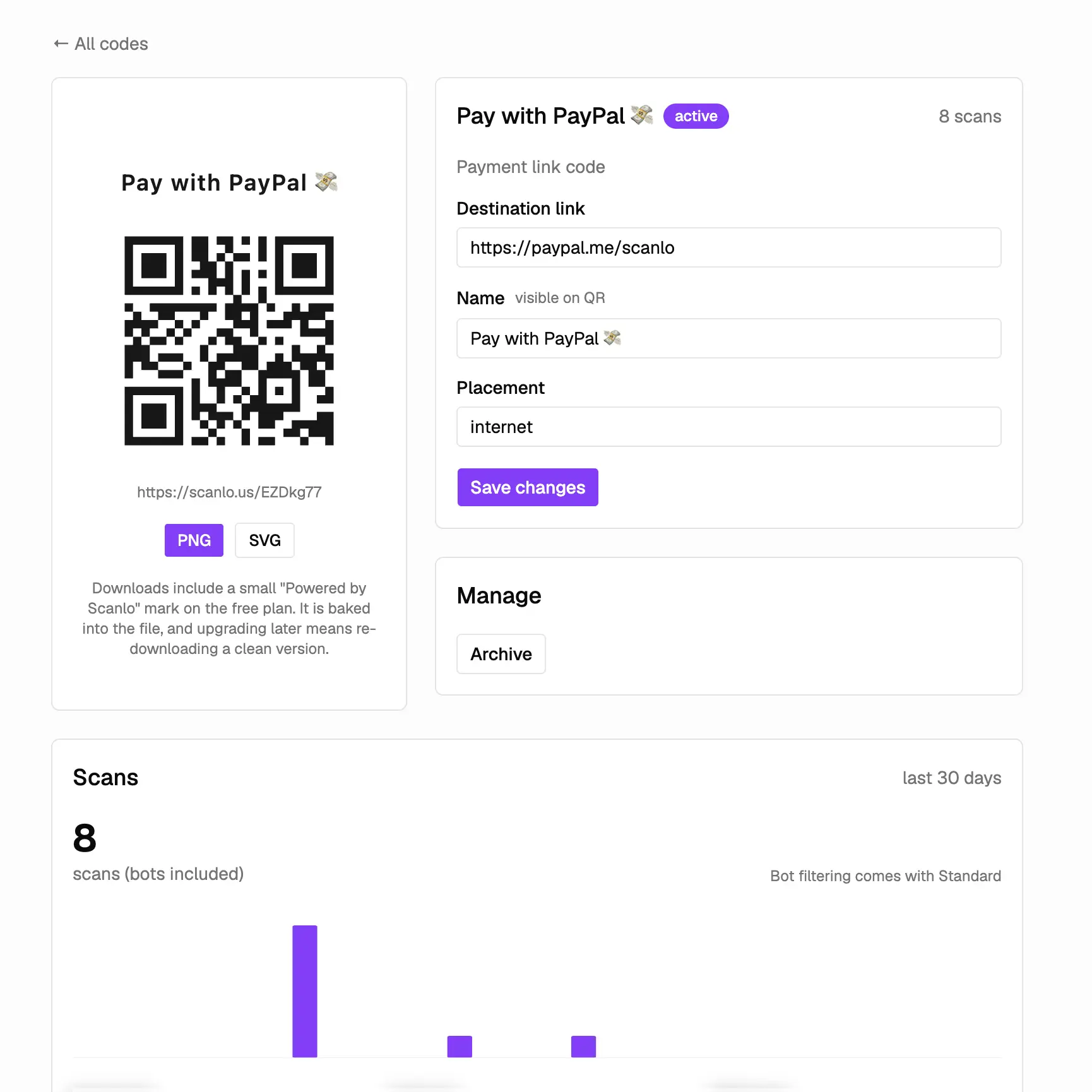
The way around this is a dynamic PayPal QR code. Instead of baking the PayPal link into the image, you point the QR at a redirect you control, and the redirect forwards each scan to PayPal. If your PayPal link ever changes, you update the destination once and every printed code keeps working. Nothing on paper has to change. That is the core difference between a static and a trackable PayPal QR code.
How do I know if people can actually scan my code?
The hardest scanning problem is the silent one: a code that quietly fails, and you never hear about it because customers just give up and walk away. With static code, you have no way to know whether it is being scanned at all.
A trackable code closes that gap. Because every scan passes through a redirect first, you can see how many scans a placement is getting. If the counter code logs scans all week and the flyer logs none, you know the flyer code has a problem, whether that is placement, print quality, or size, and you can fix it instead of guessing. If you want the detail on what that reporting shows, see can you track PayPal QR code payments.
Frequently Asked Questions
Why won't my PayPal QR code scan?
The usual causes are a dirty or dim camera lens, a code printed too small or with weak contrast, or an out-of-date PayPal app. Clean the lens, improve the lighting, update the app, and reprint the code larger with a clear margin. Testing on a second phone quickly tells you whether the problem is the code or the scanner.
Does PayPal have a QR code scanner?
Yes. The PayPal app includes a scanner for in-person payments: you can show your own code to receive money or scan another person's code to send it. If the scanner will not read a code, update the app and confirm PayPal has permission to use your camera.
Can I scan a PayPal QR code with my normal camera?
If the code points at a link, such as a PayPal.Me QR code, most modern phone cameras open it without any extra app. Point the camera at the code and tap the banner that appears. A code generated purely inside the PayPal app for in-person payment may need the PayPal app to read it.
Why does my printed PayPal QR code no longer work?
If a code scanned fine before and now goes to a dead page, the link behind it has almost certainly changed. A static code bakes the link into the image, so it cannot be updated once printed. A dynamic code points at a redirect you control, which lets you change the destination without reprinting.
How big should a PayPal QR code be to scan reliably?
Aim for at least about 0.8 inches (2 cm) wide for codes scanned up close, and larger for anything read from a distance. Keep strong contrast, a clear quiet zone around all four sides, and print from a high-resolution file rather than a screenshot.
Why is the QR code feature missing from my PayPal app?
Usually one of three things. The app is out of date, so update it from the App Store or Google Play first. The feature moved, and on recent versions it sits behind the QR or scan icon rather than in the main menu. Or your account type or country does not offer in-person QR payments, which is the one you cannot fix from the app. If all you need is a code people can scan to pay you, you do not need the feature at all: turn your PayPal.Me link into a QR code and print that instead.
Why does my PayPal QR code just open the homepage?
The code scanned correctly, so this is not a camera or print problem. It means the link inside the code no longer resolves to a payment page, and PayPal sends unrecognized links to its homepage. The usual cause is that the PayPal.Me handle behind the code changed, or the code was generated from a mistyped link. Open the link in a browser to confirm. A static printed code cannot be corrected once it is wrong, but a code that points at a redirect you control can be repointed without reprinting.
Why does PayPal say my QR code is not recognized?
That is a different failure from a code that will not scan. The camera read the code, but PayPal rejected what was inside it. The common cause is scanning a non-PayPal code with PayPal's in-app scanner, which only accepts PayPal's own in-person codes. A code that holds an ordinary link, such as a PayPal.Me QR code, should be opened with the phone camera instead.
Why will PayPal not let me download my QR code?
Save and share options vary between app versions and account types, and a screenshot is a poor substitute: it captures the code at screen resolution, which often prints blurry and fails to scan. If you need a file to print, generate the code from your PayPal.Me link instead. You get an SVG or a high-resolution PNG, you can do it from a computer rather than the phone app, and the same file works for a counter card, a flyer, and your website.
Bottom line
Most PayPal QR scanning problems are quick fixes: clean the lens, add light, update the app, and reprint the code bigger with good contrast and a clear margin. The failure you cannot fix with a wipe of the lens is a printed code whose destination has changed, and the way to avoid it is a code you can edit and monitor after it is printed. Create a trackable PayPal QR code with Scanlo so a code you print today keeps working, and you can see when it does not.