
Google Calendar Booking Page QR Code: Let Your Window Take Bookings After Hours
· Peter Bednarek
Contents
- What do you already have that can take bookings?
- Is Google Calendar's free booking page enough?
- How do you make a QR code for a Google Calendar booking page?
- Why should the printed code be editable?
- Where should the booking QR code go?
- How do you know the window is actually working?
- Can the same window and counter do more than bookings?
- What about reminders and no-shows?
- Frequently Asked Questions
- Bottom line
Quick answer
To make a QR code for a Google Calendar booking page, open your appointment schedule in Google Calendar on a computer, copy its booking page link, and paste that link into a QR code generator. Use a tracked code with an editable destination, so a printed window sign keeps working if your booking page ever changes, and so you can see how many people scanned it. Print it at least 1 inch wide, and 5 inches or more for a window.
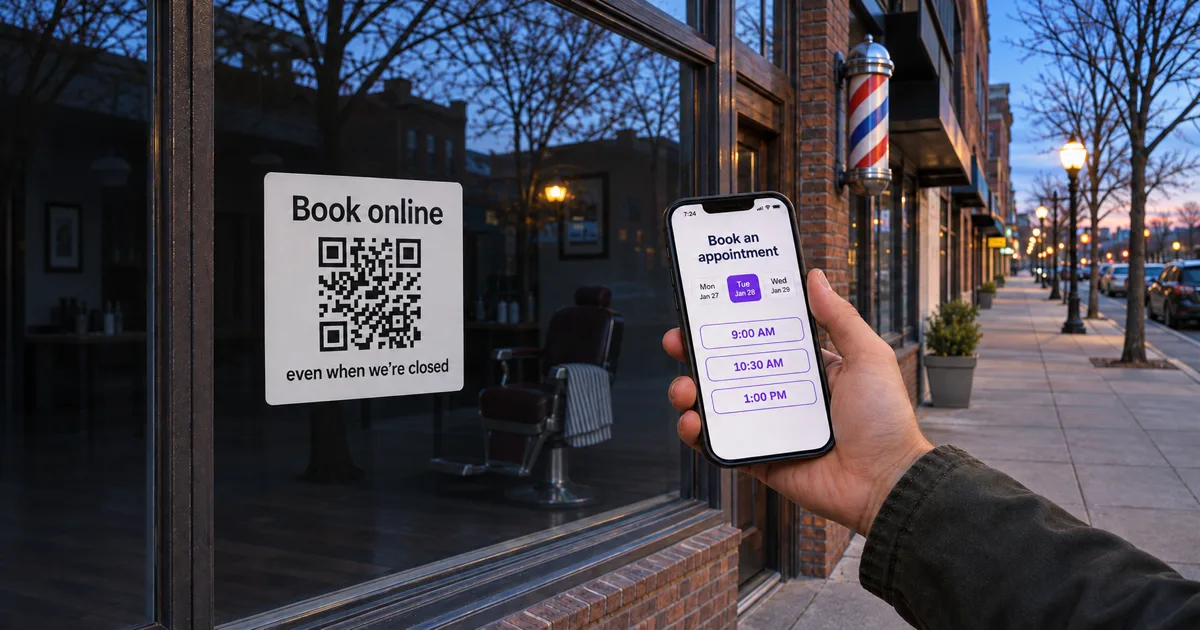
At 9:40 on a Sunday night, someone walks past your shop, sees the lights off, and thinks, "I should book a haircut." Then they keep walking, and by Monday morning they have forgotten. Nobody was there to take the booking.
You probably already have everything needed to catch that person. Google Calendar has a free booking page. You have a window they walked past, a counter where people stand and wait, and a website people find at night. What is missing is the bit that connects them: a way to get from "I should book" to an open time slot in one scan.
This guide shows how to put that connector in place with what you already have. There is no new booking system to adopt and nothing to migrate.
What do you already have that can take bookings?
More than most owners count. Look at it as a list of things that are working for you at 10 p.m., or could be:
A booking page. If you have a Google account, you can publish a Google Calendar appointment schedule: a public page where customers pick an open slot, fill in their details, and the appointment lands in your calendar. A free personal account gets one booking page.
Your window or door. It is seen by everyone who walks or drives past, including all the people who pass after you have closed.
Your counter or front desk. Customers stand there for a minute while they pay or wait. That is the best moment to book the next visit, and you are usually too busy to ask.
Your website. It is open around the clock, and visitors at night are often the ones closest to deciding.
Things you hand out. Business cards, receipts, invoices, the sticker on a job you finished.
Each of these is already in front of customers. The problem is that most of them say nothing about how to book, or they print a URL nobody will type on a phone.
Is Google Calendar's free booking page enough?
For a business where one person takes one appointment at a time, often yes. A barber with one chair, a personal trainer, a tutor, a massage therapist, a mobile dog groomer: the free page handles open slots, a booking form, buffer time between appointments, and puts every booking straight into the calendar you already check.
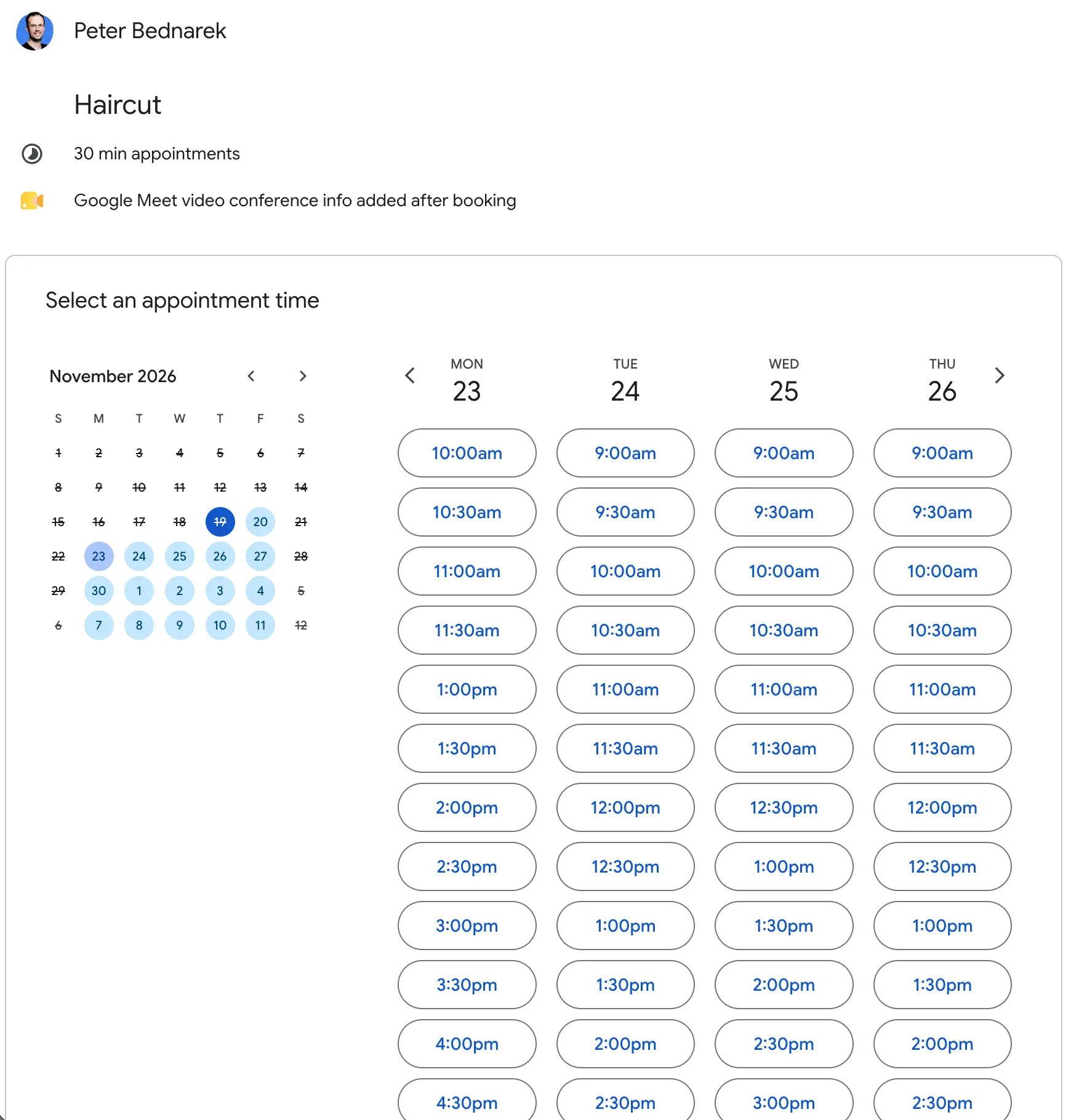
Know the limits before you print anything that points at it:
What you want | Free Google account | Paid Google plan |
|---|---|---|
A public booking page | Yes, one | Yes, several |
Automatic reminder emails to the customer | No | Yes (Google One Premium, Google AI Pro, Workspace) |
Take payment when booking | No | Yes, through Stripe (Workspace Individual and above) |
Text message reminders | No | No, on any plan |
A customer list you can contact later | No | No |
Two gaps matter for a business that relies on bookings. The first is no-shows: on a free account Google confirms the booking but sends no reminder, and no plan sends a text. The second is that bookings stay calendar events, so there is no customer list you can reach later. We come back to both at the end.
Our sister product Remindlo has a detailed walkthrough of what Google's booking page can and cannot do, compared with Calendly, Acuity and Cal.com: do you need booking software, or is Google Calendar enough?
How do you make a QR code for a Google Calendar booking page?
The whole process takes about five minutes.
Create the appointment schedule, if you have not yet. Do this in Google Calendar on a computer. Google does not let you create one in the phone app. Set your available hours, appointment length and booking form.
Copy the booking page link. Open the appointment schedule and use its share option to copy the booking page link. It is a short link that usually starts with
calendar.app.google.Test the link in a private browser window. It should open your booking page the way a customer sees it, with open slots showing. If it asks you to sign in, or shows no times, fix that first.
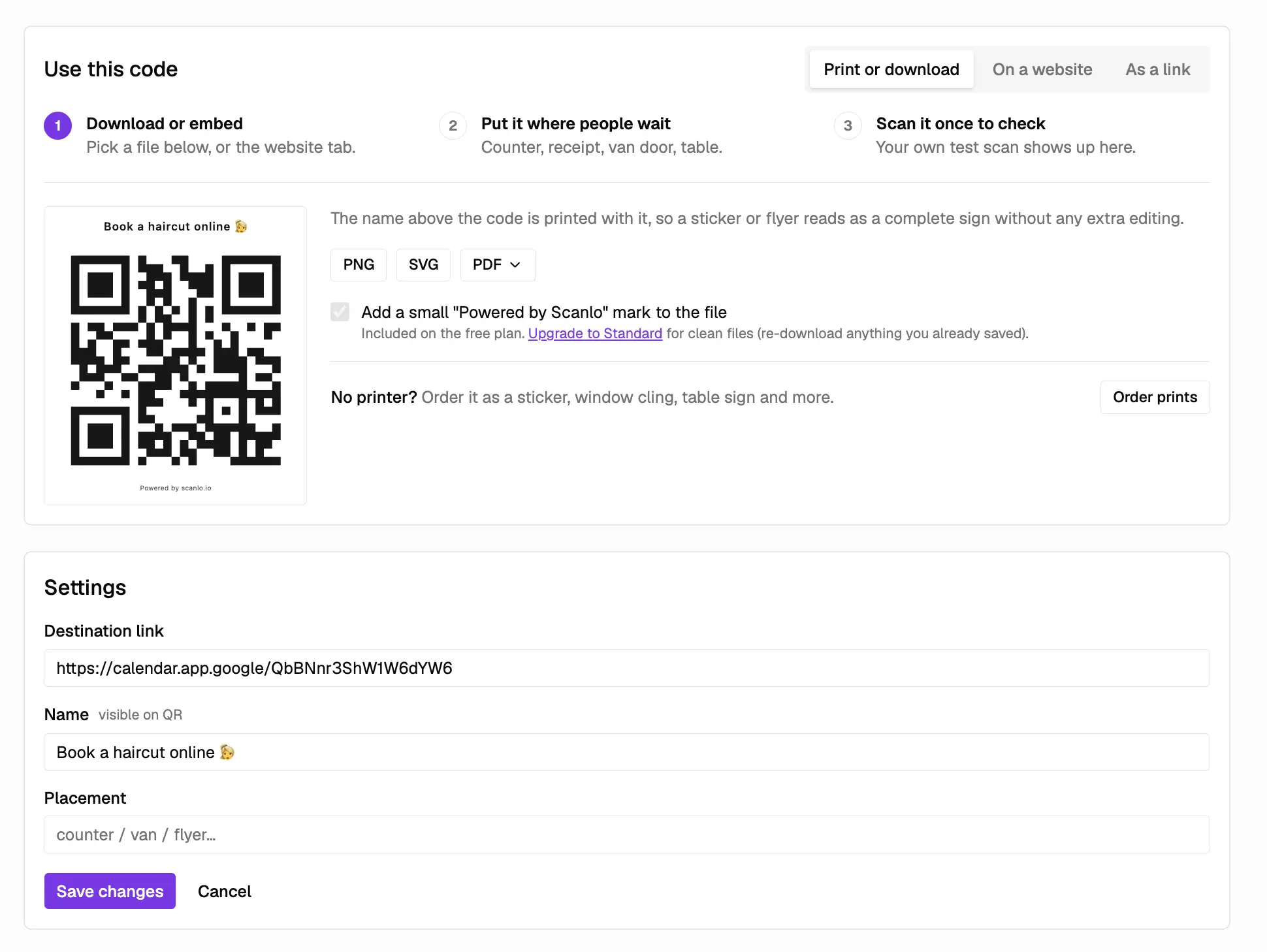
Paste the link into a QR code generator. Use one that gives you a tracked code with a destination you can edit later. The next section explains why.
Download it as an SVG or a high-resolution PNG, print one test copy at final size, and scan it with a plain phone camera from where a customer would stand.
Then print the real thing and put it up.
Add one line of text next to the code. "Book online, even when we're closed" tells people what happens when they scan, and a bare square does not.
Scanlo's booking page QR code accepts any public booking link, including a Google Calendar one, and is free for your first codes.
Why should the printed code be editable?
Because a window sign outlives the link it was made for.
A plain QR code bakes the address into the pattern. If you later delete that appointment schedule and make a new one, move to Calendly or Square Appointments, or switch to a paid Google plan and reorganize your pages, the printed code keeps sending people to the old address. On a window cling that means a scraper and a reprint. On 500 business cards it means 500 dead cards.
A tracked code points at a short link you control, and that short link forwards to your booking page. Change where it forwards, and every printed copy follows. With Scanlo, a printed code's redirect keeps working on every plan, including the free one, and it is never switched off because of billing.
Where should the booking QR code go?
Put it where people are and you are not available, which is the whole point of the exercise.
Placement | Who it catches | Code size |
|---|---|---|
Window or door | People passing after hours, or while you are busy with a client | 5 inches or more |
Counter or front desk | The customer in front of you, booking their next visit | 2 to 4 inches |
Mirror or treatment room | Clients mid-service, the natural moment to rebook | 2 to 3 inches |
Business card | People you meet, who will look you up later | 1 inch |
Receipt or invoice | Customers who liked the visit and want another | 1 inch |
Your website | Night-time visitors on a laptop who want to book on their phone | Embedded, see below |
The window is the one most businesses miss. Your shop is advertising to the street for 24 hours a day and taking bookings for maybe 8 of them.
What about your website?
Your booking page link can go on your site as a plain button, and it should. A QR code next to it does a different job. Someone browsing on a laptop at night often wants to book on their phone, where their calendar and their card are. A code on the page lets them scan it with the phone in their hand and carry on there.
Scanlo gives you a snippet to paste into any website that shows the same tracked code, live. On a phone it is a tappable link, because nobody can scan a code on the screen they are holding. Your dashboard counts website taps separately from printed scans, so you can see which one brings people in.
How do you know the window is actually working?
This is the question a static code can never answer. Google shows you bookings. It does not show you the people who scanned your window, looked at the slots, and left, or which of your placements brought the booking in.
With a tracked code, every scan is logged before the person reaches your booking page. Two practical ways to use that:
Look at the days you were closed. If your daily scan chart shows scans on a Sunday and your shop is closed on Sundays, the window is taking bookings you would otherwise have lost.
Use one code per placement. One code on the window, a second on the counter. After a few weeks you know which spot earns its space and which can go.
One thing our own data says clearly: making the code is the easy part, and putting it where people see it is the actual job. Across the codes created on Scanlo that were ever scanned, 21 of 23 got their first scan within 10 minutes of being made. That is the owner testing it. The details and the method are on our scan data page. A booking code that lives in your downloads folder takes no bookings.
Can the same window and counter do more than bookings?
Yes, and this is where the "you already have it" idea pays off twice. The customer standing at your counter is also the person most likely to leave a review and the person about to pay you.
Reviews. A Google review QR code at the counter catches people while the service is fresh. If you also collect reviews on Yelp or Facebook, a review hub puts all of them behind one scan.
Payments. If you take Venmo, Cash App, PayPal or Zelle, a payment hub shows every app you accept behind one code, so the customer picks their own.
Resist putting four codes on one sign, though. We wrote up how to decide what each spot should do in multiple QR codes on one sign. The short version: one job per spot, so the window books and the counter collects reviews or payments.
On Scanlo's free plan that set fits without paying anything: two tracked codes, say one for bookings on the window and one for Google reviews, plus one hub for payments at the register.
What about reminders and no-shows?
A booking from your window at 10 p.m. is only worth something if the customer turns up. That is the gap in Google's booking page we flagged above: on a free account there is no reminder, and on any plan there is no text message.
Remindlo, our sister product, fills it without replacing anything. It connects to the Google Calendar that holds your bookings, reads each new appointment with the customer's phone number, and sends text and email reminders before the visit. You keep the free booking page and the QR code exactly as they are. The setup guide is here: Google Calendar booking page SMS reminders. Remindlo works with US phone numbers.
So the whole stack is three pieces, and you probably have the first one already:
Google Calendar booking page takes the booking.
A Scanlo QR code on your window, counter and website brings people to it, and shows you which placement did.
Remindlo makes sure they show up.
Frequently Asked Questions
Can I make a QR code for my Google Calendar booking page?
Yes. Copy your booking page link from the appointment schedule in Google Calendar, then paste it into any QR code generator that accepts a URL. Use a tracked code with an editable destination if you plan to print it, so the printed copy keeps working if your booking link changes.
Is Google Calendar's booking page free?
Yes, a personal Google account can publish one booking page for free. Paid plans (Google One Premium, Google AI Pro and Google Workspace) add more booking pages and automatic reminder emails, and Workspace Individual and above can take payment through Stripe. Google's own plan comparison is the place to check current details.
Where do I find my Google Calendar booking page link?
Open Google Calendar on a computer, open your appointment schedule, and use its share option to copy the booking page link. Test it in a private browser window before turning it into a QR code, to make sure customers see open slots rather than a sign-in screen.
Does Google Calendar send appointment reminders?
On a paid Google plan it can send automatic reminder emails to the person who booked. On a free personal account it sends a confirmation but no reminder. Google does not send text message reminders on any plan, so a reminder tool such as Remindlo is needed for SMS.
What size should a booking QR code be on a shop window?
At least 5 inches wide for a window or door, since people scan it from a few feet away on the sidewalk. A useful rule is about 10 times the code's width in scanning distance. Use dark code on a light background, keep blank space around it, and choose a matte finish to avoid glare.
What happens to my printed QR code if I change booking systems?
With a plain QR code, the old link is baked into the print, so you have to reprint. With a tracked code from a tool such as Scanlo, you change the destination in the dashboard and every printed copy points to the new booking page, whether that is a new Google schedule, Calendly or Square Appointments.
Can I see how many people scanned my booking QR code?
Not with a plain code. Google reports bookings, not scans. A tracked code logs every scan before forwarding the person to your booking page, so you can see scans by day and compare placements, such as the window against the counter.
Bottom line
You do not need booking software to take bookings while you are closed. You need the free Google Calendar booking page you can set up today, and a way for the people passing your window, standing at your counter and browsing your site at night to reach it in one scan. Make that code editable so it survives a change of booking system, count the scans so you know which spot works, and add reminders if no-shows cost you money. Create a booking QR code for your Google Calendar booking page with Scanlo.