
How to Create a Venmo QR Code for Your Business
· Updated · Scanlo Team

Contents
- Where is the Venmo QR code inside the app?
- How do you create a printable Venmo QR code from your profile link?
- How do you create a Venmo QR code on a computer?
- Comparing Venmo QR code options
- Can you create a Venmo QR code for a specific amount?
- How to create a trackable Venmo QR code for your business
- Taking other payment methods too?
- Frequently Asked Questions
- Bottom line
Quick answer
To create a Venmo QR code, personal users can show their in-app Venmo Me code, while business profiles can tap Charge, open the QR tab, set an amount, and export a print-ready PDF. For custom designs, web embeds, or editable tracking across placements, generate a QR from your public profile link (venmo.com/u/YourUsername).
Most business owners searching for how to create a Venmo QR code open the app, find their personal code on their phone screen, take a screenshot, and think they are done. That screenshot works fine when a customer is standing right in front of you. But as soon as you try to print custom signage, drop a code into an invoice, or upload it to a website, you run into real friction: raster pixelation, rigid destinations, and zero scan visibility.
This guide covers every method: the in-app personal and business profile workflows (including Venmo's native printable PDF kit), how to generate clean vector codes from your public profile link on desktop or mobile, how to prefill amounts, and how to build a dynamic code that you can track and edit even after printing or placing on your website.
Where is the Venmo QR code inside the app?
Venmo provides two distinct in-app QR workflows depending on whether you are using a personal account or a dedicated business profile:
1. Personal accounts (P2P Venmo Me code)
Open the Venmo app on your iOS or Android device and log in.
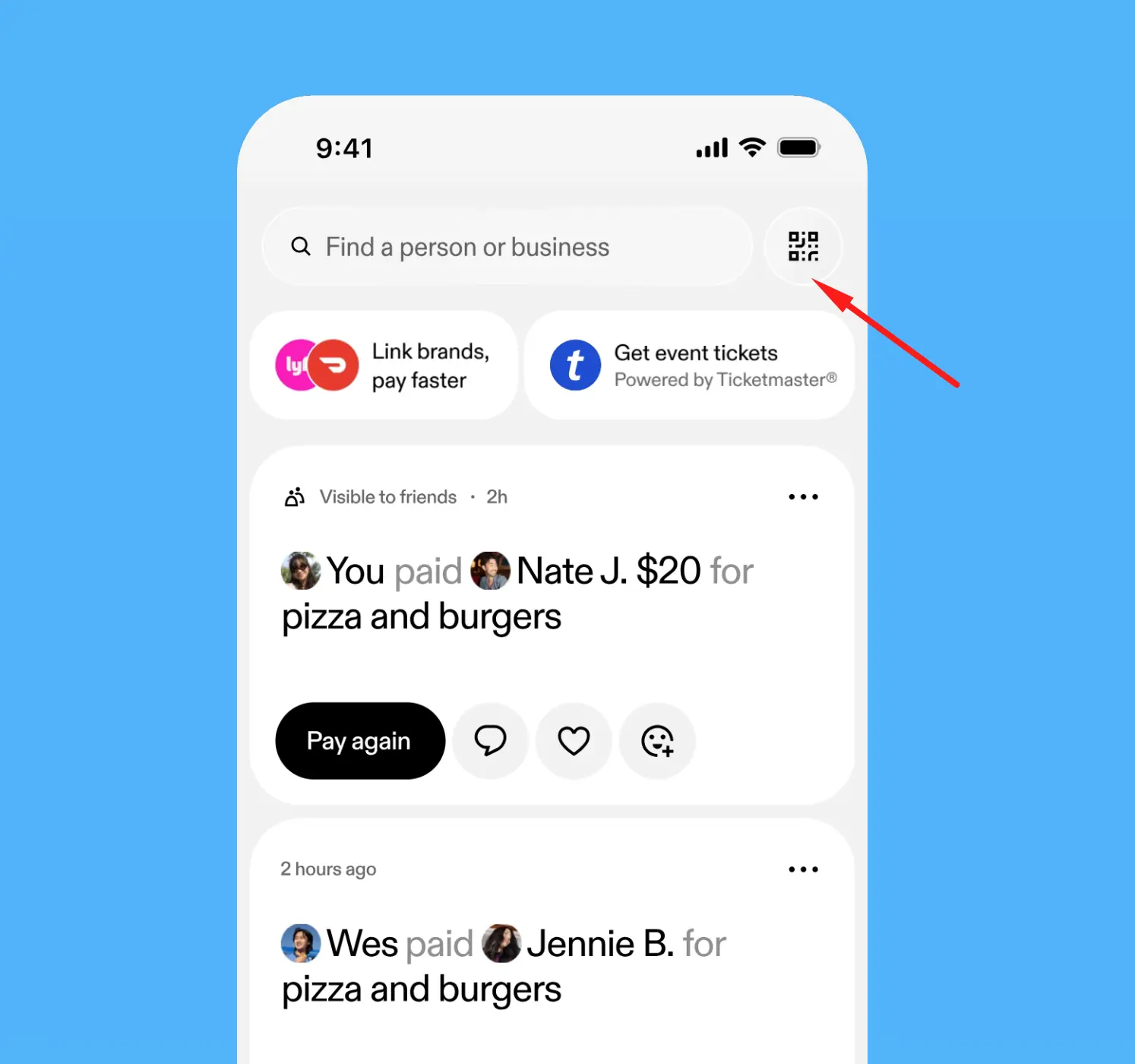
Tap the Scan icon near the top of the screen (or tap your profile icon).
Select the Venmo Me tab to display your personal QR code.
Have the customer scan your screen with their phone camera or Venmo app.
When to use: Instant, face-to-face payments where both parties are holding their phones.
2. Business profiles (Charge flow, price presets & PDF kits)
If you operate a registered Venmo Business Profile, Venmo provides built-in merchant QR tools:
In the Venmo app, switch to your Business Profile.
Tap Charge (or tap the QR icon), then select QR Code to access your business Venmo Me code.
Optional price preset: Tap to add a specific amount before presenting or exporting the code, so customers see that exact total when scanning.
Export ready-to-print PDFs: Tap the export/share option to download an official, high-resolution Venmo PDF print kit.
When to use: When you need a quick, standard physical printout with Venmo branding and do not need custom layout design or scan analytics.
How do you create a printable Venmo QR code from your profile link?
If you are creating custom signage in Canva, designing an invoice in Word, or building a custom-branded display, generating your QR code from your public profile link is the most versatile route. Every Venmo profile has a public web URL:
https://venmo.com/u/YourUsername
Because this is an ordinary web address, any standard smartphone camera reads it and routes the customer to your payment page in a browser or the Venmo app.
Here is how to generate a custom code from your link:
Find your Venmo username: Open your Venmo app, tap your profile tab, and confirm your handle (e.g.,
@YourBusiness).Build your public URL: Combine
https://venmo.com/u/with your exact username (without the@symbol). For example:https://venmo.com/u/YourBusiness.Verify the URL: Open the link in an incognito browser window to make sure it loads your correct profile and payment page before generating any codes.
Paste into a QR generator: Enter your URL into a standard QR code generator.
Download a vector file (SVG) or high-res PNG: An SVG file scales infinitely without pixelation, making it ideal for business cards, window stickers, table tents, and banners.
Test scan with a regular camera app: Open your phone's default camera, point it at the downloaded code, and confirm that the banner opens your Venmo profile.
If you are evaluating different tools for this step, check out our guide to the best QR code generators for Venmo. If you need help finding your exact link on different devices, see how to get a Venmo QR code.
How do you create a Venmo QR code on a computer?
Designing a flyer, sticker, or invoice on a laptop or desktop computer is much easier when you do not have to email screenshots back and forth from your phone. You can create a Venmo QR code completely in your computer browser:
Look up your Venmo username once in your app or past records.
On your computer browser, navigate to
https://venmo.com/u/YourUsernameto confirm the page loads properly.Copy the URL from your browser's address bar.
Go to a web-based QR generator and paste your link into the URL field.
Download the SVG or high-resolution PNG file directly to your desktop.
Drop the file straight into Canva, Photoshop, Illustrator, Microsoft Word, or your invoice template.
This keeps your design workflow entirely on your computer and ensures your printed assets maintain sharp lines and crisp edges.
Comparing Venmo QR code options
Understanding the differences between each approach helps you select the best method for your setup:
Feature | In-App Personal QR | In-App Business PDF Kit | Custom Profile Link QR | Dynamic Tracked QR (Scanlo) |
|---|---|---|---|---|
Best For | Phone-to-phone P2P | Quick standard printable signs | Custom flyers, web embeds | Multi-placement business tracking |
Creation Device | Phone only | Phone only | Phone or computer | Phone or computer |
File Formats | Screen / Screenshot | Pre-formatted PDF | Scalable SVG, PNG | Scalable SVG, high-res PNG |
Custom Design | None | Venmo default template | Full creative control | Full creative control |
Editable After Print | No | No | No | Yes (change destination anytime) |
Scan Analytics | None | None | None | Scan counts, location, time, devices |
Cost | Free | Free | Free | Free |
Can you create a Venmo QR code for a specific amount?
A standard Venmo profile link (venmo.com/u/YourUsername) opens your profile and allows the customer to enter any dollar amount they choose. This is ideal for tips, donations, variable-price services, and market stalls.
If you want to suggest a specific dollar amount or note for a flat-rate service or invoice, you have two options:
In the Venmo Business App: Switch to your business profile, tap Charge, enter the desired amount, and generate the QR code directly.
Via URL query parameters: Append amount and note parameters to your public link:
https://venmo.com/u/YourUsername?txn=pay&amount=25.00¬e=Consultation%20Fee
When someone scans a QR code containing these parameters, the payment screen opens with the amount ($25.00) and note ("Consultation Fee") prefilled, saving the customer from typing them manually.
Important distinction: URL query parameters provide a prefilled amount, not a locked amount. Customers can still tap and edit the number before completing the transfer. Venmo profile links do not currently support strict amount locking.
When adding a note with spaces or special characters, make sure to URL-encode the text (for example, replace spaces with %20 as in note=Consultation%20Fee).
Always test your prefilled link in a browser and phone camera before printing. If your business requires true non-editable checkout totals with card payment processing, a Stripe payment QR code or a Square QR code is a more dependable solution.
How to create a trackable Venmo QR code for your business
When you print a standard static QR code on 500 flyers, 10 table tents, and a front counter sign, you run into two major business blind spots:
No editability: If your username changes, you switch to a dedicated business profile, or you want to route customers to a seasonal promotion, every existing printed code breaks. You have to reprint everything.
No scan visibility: Venmo only alerts you when a payment is completed. It cannot tell you how many people scanned your counter sign, viewed your profile, and hesitated or walked away without paying.
A dynamic QR code solves this by routing scans through a fast, lightweight redirect that logs analytics before forwarding the user to your Venmo profile.
Here is how to create a trackable Venmo QR code in 60 seconds:
Copy your verified Venmo link (
https://venmo.com/u/YourBusiness).Go to Scanlo's Venmo QR Code Generator and paste your link.
Customize your QR design and download your print-ready vector file (SVG or high-res PNG).
Place your code on your marketing materials, table tents, storefront stickers, or invoices.
Log into your Scanlo dashboard anytime to monitor total scans, unique visitors, scan times, and customer devices across each placement.
Because the redirect happens in the cloud, you can update the destination URL at any time without having to replace or reprint your physical QR codes.
Taking other payment methods too?
Small businesses rarely rely on a single payment platform. If you take payments across multiple channels, you can generate dedicated, trackable QR codes for each service:
Cash App QR Code: Generate codes from your
$cashtaglink for tip jars and market stalls.PayPal QR Code: Create printable codes for PayPal.Me profiles and invoices.
Zelle QR Code: Direct customers straight to your bank-backed Zelle payment instructions.
Stripe Payment QR Code: Accept direct credit card payments and fixed-price checkouts.
Square QR Code: Connect your Square POS checkout links to counter displays.
Donation QR Code: Streamline fundraising across multiple non-profit platforms.
Frequently Asked Questions
Is it free to create a Venmo QR code?
Yes. Generating a Venmo QR code inside the app or through a standard QR code generator is completely free. However, payment processing fees and tax-reporting requirements vary based on your profile type, transaction category, and payment method. Venmo applies seller transaction fees to payments received on business profiles as well as personal profile payments marked as goods and services. For the most up-to-date fee schedules, check Venmo's business profile fee guidance.
Can customers scan a Venmo QR code without the Venmo app?
Yes. If your QR code is generated from your public profile URL (venmo.com/u/YourUsername), scanning it with a standard smartphone camera will open your Venmo profile in their mobile browser. From there, they can sign in or download the app to complete payment.
How do I print a Venmo QR code in high resolution?
If you use a Venmo Business Profile, you can export pre-formatted, high-resolution PDF print kits directly from the app. For custom designs in Canva or Photoshop, generate your QR code from your venmo.com/u/YourUsername link and export it as an SVG vector or high-quality PDF. If using a PNG raster file, ensure the pixel dimensions match your intended physical print size (at least 300 DPI, such as 600x600 px for a 2-inch sticker). Always print a physical proof and test scan it under venue lighting before full production.
Can I change where my Venmo QR code points after printing?
Not with a standard static QR code or native Venmo print kit. If you use a dynamic QR code through Scanlo, you can log in to your dashboard and change the destination URL at any time without having to reprint your physical signs or stickers.
What is the difference between a Venmo personal QR code and a business QR code?
A personal QR code connects to an individual Venmo account intended for peer-to-peer transfers between friends and family (though personal profiles can also receive goods-and-services payments when buyers tag a transaction as a purchase). A business QR code links to a registered Venmo business profile, which unlocks merchant selling features: setting price-specific QR codes, exporting high-quality PDF print kits directly from the app, customer tipping options, tax reporting (such as Form 1099-K when thresholds are met), and standard seller transaction fees. Exact fee rates and tax rules depend on your business structure and transaction volume; see Venmo's business profile documentation for official specifics.
Bottom line
For quick, in-person transfers, opening your Venmo app and showing your in-app QR code is the fastest option. For basic ready-to-print signage, Venmo's business profile PDF kit provides a quick static solution.
For custom-designed marketing assets, invoice templates, or website embeds, build your QR code from your public profile link (venmo.com/u/YourUsername). To track how many scans convert into paying customers across different placements and keep your codes editable forever, create a dynamic code with Scanlo.