
How to Find Your Google Review Link (Step by Step)
· Peter Bednarek
Contents
Quick answer
Search for your business name on Google while signed in to the account that manages it, click Read reviews, then Get more reviews, and copy the link. On some profiles the button is called Ask for reviews or the dialog Share review form. The link looks like g.page/r/ followed by a code and /review. That link opens the star rating form directly, which is what your QR code should point to.
Your review QR code has one job: put the stars in front of the customer the moment they scan. Google has two kinds of links to your business, and only one of them does that. Your review link opens the rating form. Your Maps link opens your listing, where the customer has to scroll, find the review button and tap it, on a phone, often standing at a counter.
This article shows where to find the right link, on a computer and on your phone, how to tell the two apart, and what to do first if your business is not on Google yet.
Before you start
You need to be signed in to the Google account that owns or manages your Business Profile. If you can see your business's dashboard when you search your business name on Google, you are in the right account. If you only see the public listing, skip to "No access to the Business Profile" below. If your business does not show up on Google at all, start with the next section.
Not on Google yet? Create your Business Profile first
There is no review link until there is a place on Google to review. A Business Profile is free, and you set it up once.
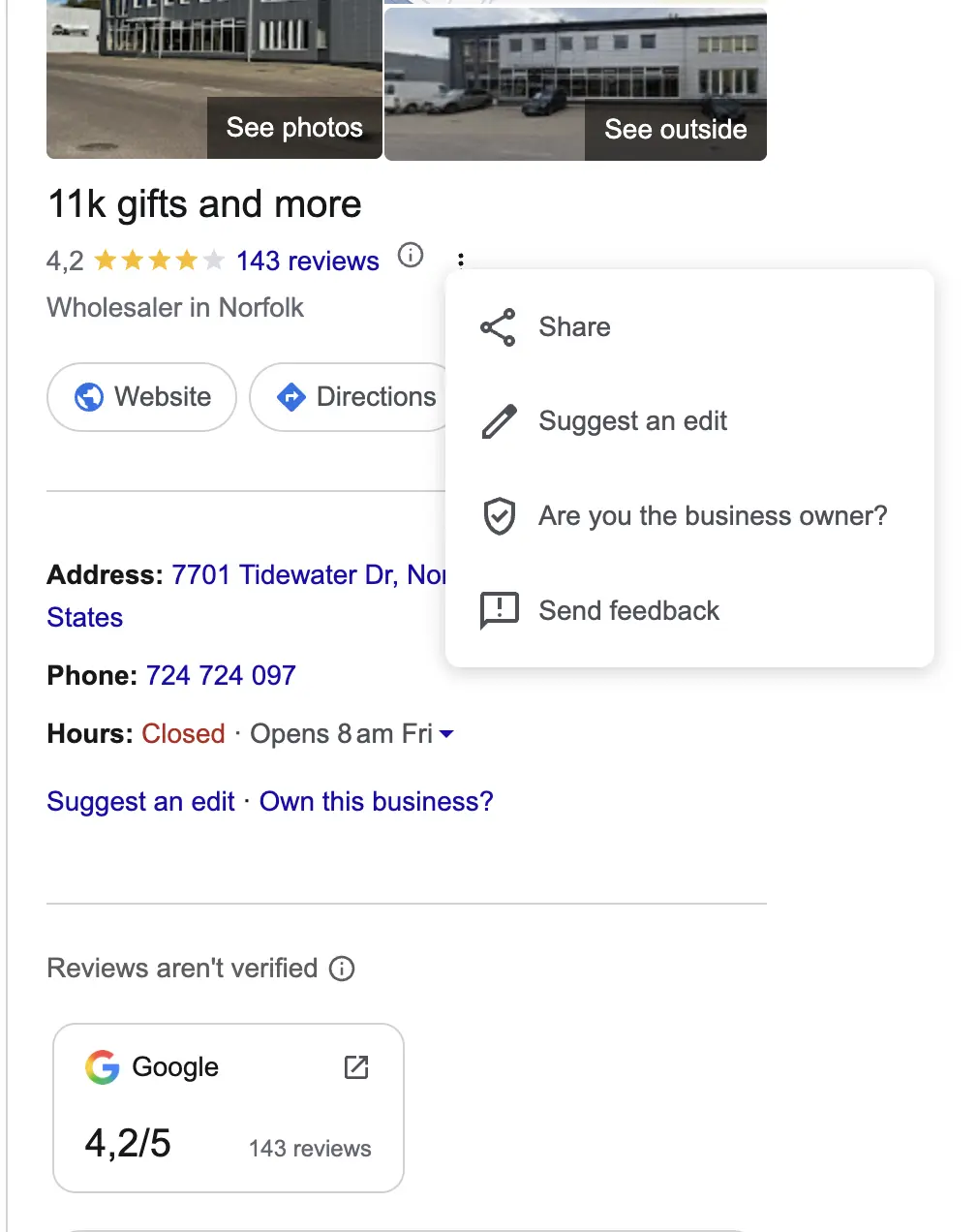
Check whether a listing already exists. Search for your business name and town on Google Maps. Google sometimes creates listings on its own, from addresses and customer edits. If you find yours with a Claim this business or Own this business? link, click it and skip to step 4: you are claiming the existing listing, not making a new one, and a duplicate would split your reviews.
Go to business.google.com and click Manage now, signed in to the Google account you want to own the profile. Use an account you will keep, ideally a business one rather than a staff member's personal address.
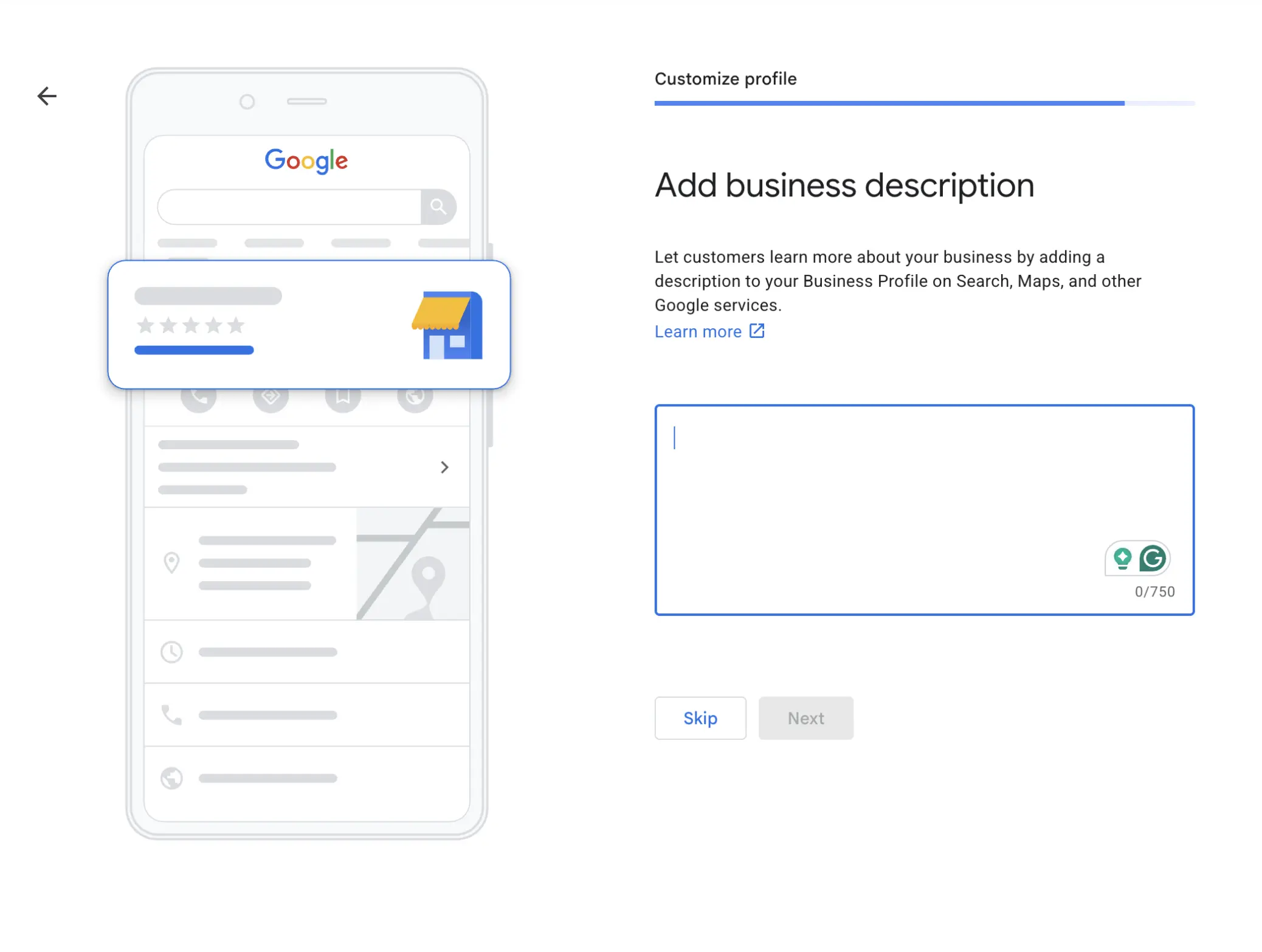
Enter your business details: name exactly as it appears on your sign, the category that best describes what you do (for example Hair salon or Plumber), and either your address or, if you visit customers instead, the area you serve. Add a phone number and website if you have them.
Verify the business. Google needs to confirm you are real and you run it. Depending on the business, it offers one or more of: a short video of your premises and something only the owner can show (keys, tools, paperwork), a phone call or text, an email, or a postcard with a code. Google picks the options, not you.
Wait for the profile to go live. Some profiles go live within minutes of verification. Others take several days, longer if Google asks for more proof. Your review link works once the profile is public, so check it before you print anything.
Once your profile is live, come back here and follow the steps below to copy your review link.
A few things that save trouble later:
Add a second manager. In the profile's settings, under People and access, add a co-owner or manager. If the person who set it up leaves, you will not lose access to your own reviews.
Do not invent a storefront. If customers do not visit you, choose a service area instead of an address. Google removes profiles with addresses that do not match a real, staffed location, and their reviews go with them.
Do not create a second profile if you already have one you cannot get into. Use Google's ownership request on the existing listing instead.
On a computer
Search for your business name on Google, signed in to the account that manages it. Your Business Profile appears at the top of the results with management buttons.
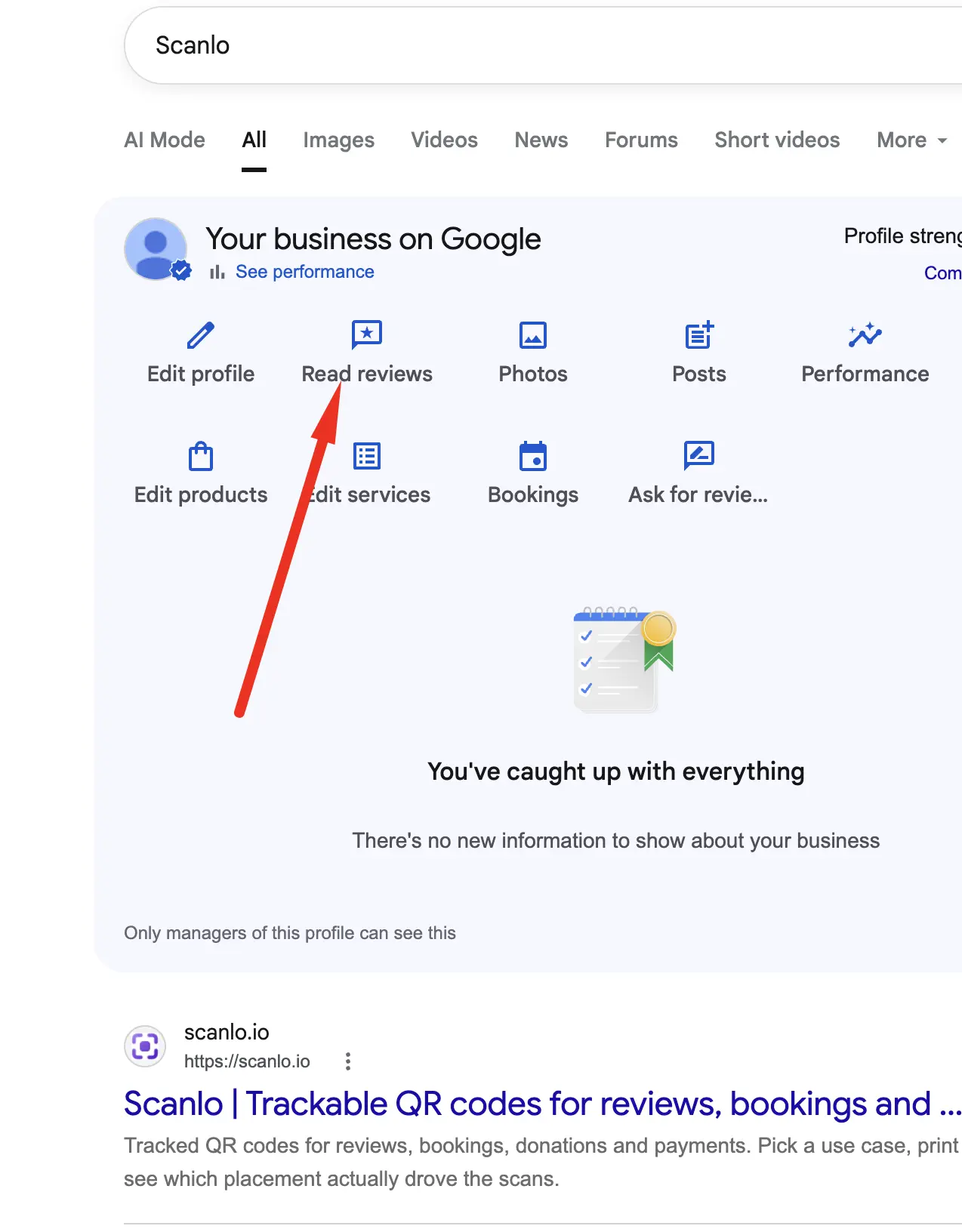
Click "Read reviews", then "Get more reviews". On some profiles the button is called Ask for reviews, sits directly on the panel or behind a More menu, and the dialog is titled Share review form.
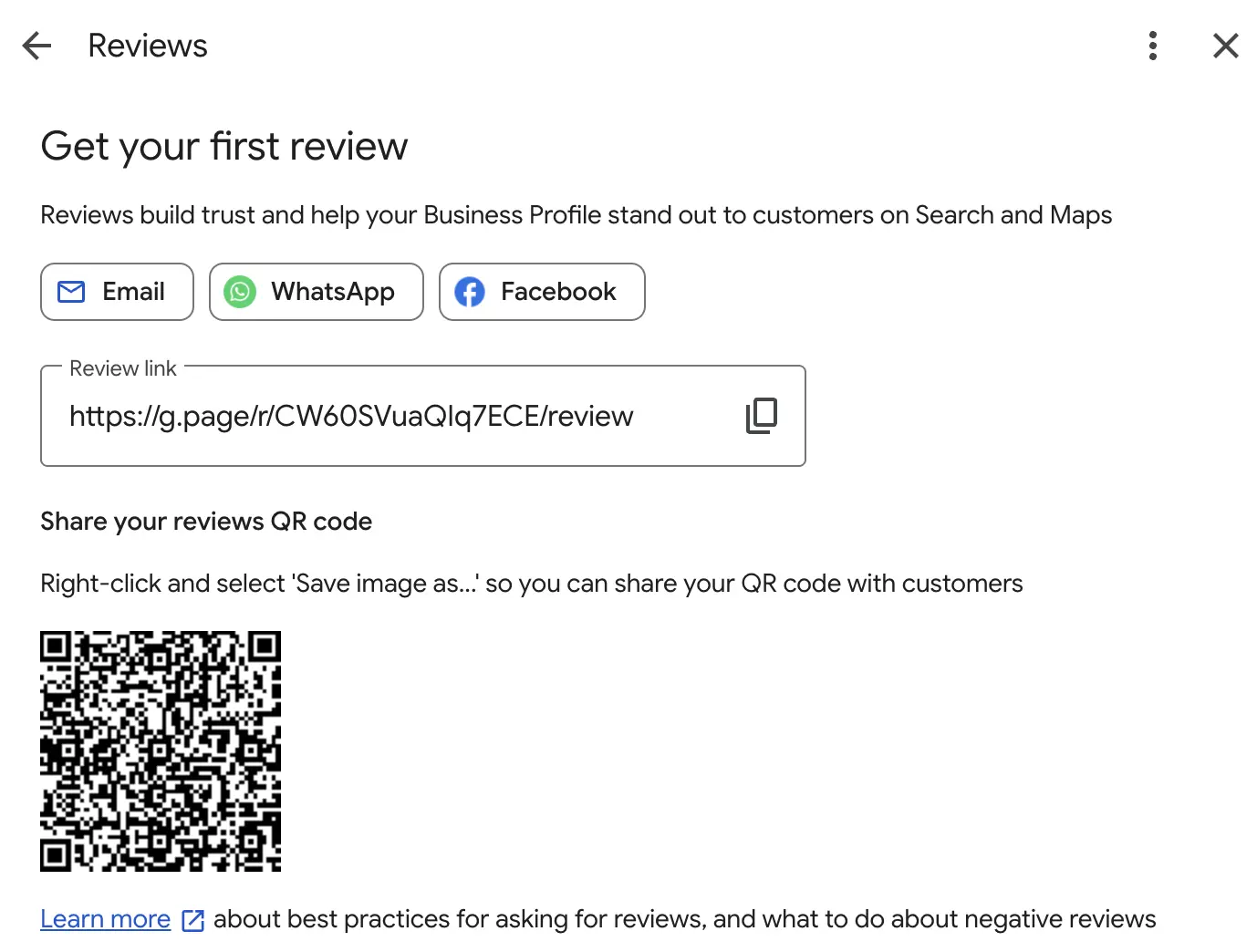
Click Copy in the dialog that opens. It looks like
https://g.page/r/CAbCdEfGhIjK/review.
Test it. Open the link on your phone. You should land straight on five empty stars with your business name above them.
On your phone (Google Maps app)
Open the Google Maps app and tap your profile picture, then Your Business Profile.
Find Get more reviews (or Ask for reviews) and tap it.
Tap Copy link, or share it to yourself.
Which link is which
Link looks like | What it opens | Use it for your QR? |
|---|---|---|
| The star rating form | Yes |
| The star rating form | Yes |
| The review panel in Google Maps | Yes |
| Your Business Profile | No, add |
| Your Maps listing | No |
| Your Maps listing | No |
The Maps links are the ones people copy most often, because Share in Google Maps hands them out. They work, in the sense that the customer reaches your business. But every extra step between the scan and the stars is a place where someone puts their phone away.
When you paste a Maps link or a g.page link without /review into Scanlo, you will see a short note under the field. For the g.page case there is a button that fixes the link for you. It is advice, not an error: the code saves either way.
No access to the Business Profile?
If someone else manages your profile (a previous owner, an agency, a franchise head office), ask them for the review link: it takes them a minute with the steps above.
If that is not possible, you can build the same review form link yourself from your Place ID, Google's identifier for your listing:
Open Google's Place ID Finder.
Type your business name and pick it from the list. Copy the Place ID (it starts with
ChIJ).Put it at the end of this address:
https://search.google.com/local/writereview?placeid=followed by your Place ID.
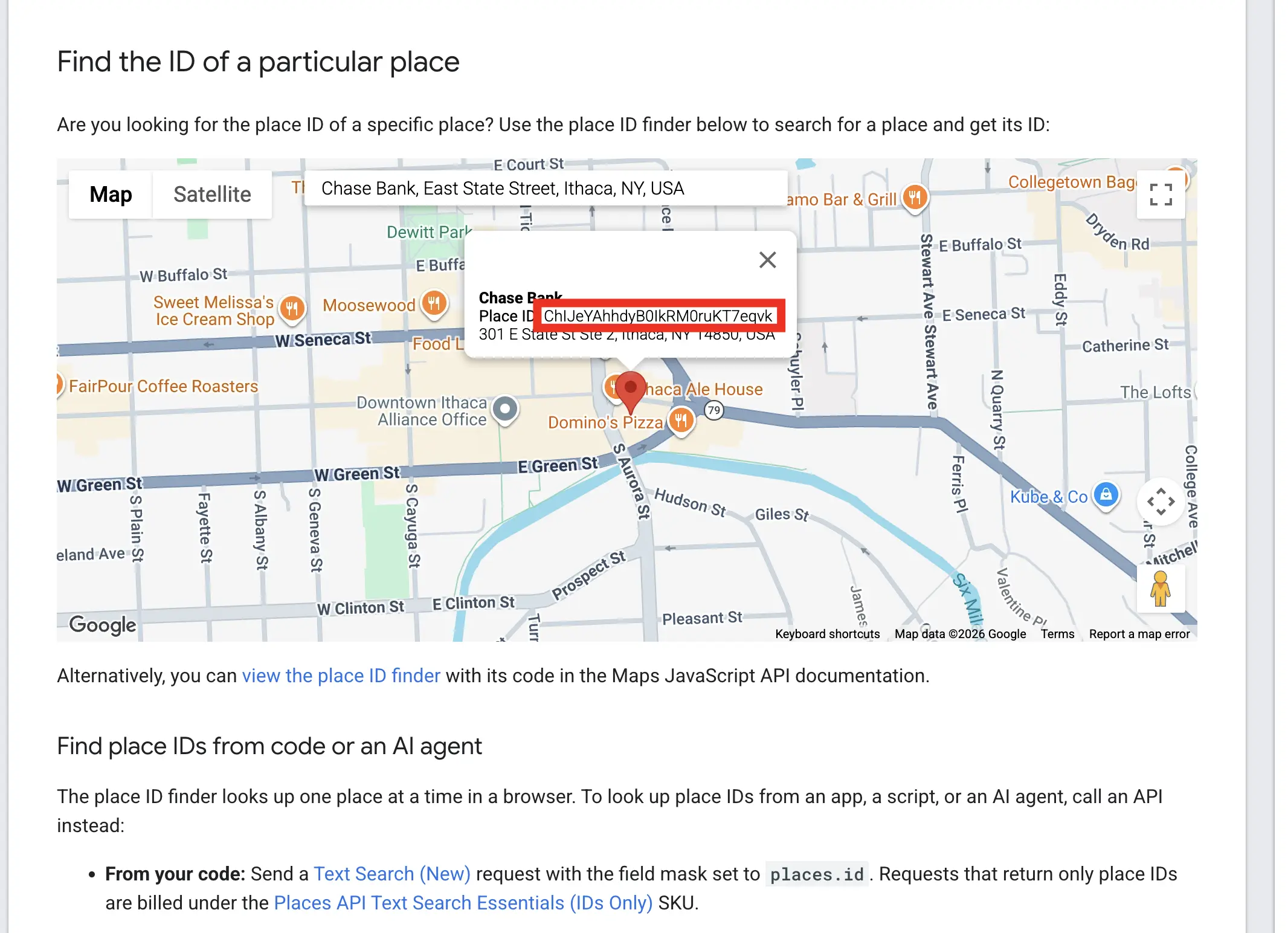
Open the result on your phone to check it lands on the stars.
Turn the link into a tracked QR code
Paste the link into the Google review QR code tool. You get a code for your counter, receipts or van, and every scan is counted, so you can see which spot earns the most reviews. Make one code per placement to compare them. If you also collect reviews elsewhere, a review hub puts Google, Trustpilot and others behind one printed code.
Already printed a code with a Maps link? Change the destination in your dashboard. The printed code stays the same, and the next scan goes to the stars.