
How to Create a Square QR Code for Payments and Bookings
· Scanlo Team

Contents
- Does Square have a QR code?
- How do I create a QR code for a Square payment?
- How do I create a QR code for Square bookings?
- How do I make a Square QR code for donations?
- What does Square actually tell you after someone scans?
- Square QR code options compared
- How to make a trackable Square QR code
- Frequently Asked Questions
- Bottom line
Quick answer
Square generates QR codes in three separate places: payment links, Square Appointments booking sites, and Square Online ordering. Create a payment link in your Square Dashboard, then choose Share and select QR Code to download it. Square reports sales for that link, but not how many people scanned it or where.
Search for a QR code for Square payments and you get two kinds of answer. One says Square has no QR code and you need a generator. The other says Square has one and points you at whichever screen the writer happened to use. Both are wrong in a way that costs you time.
Square has at least three QR codes, they live in different products, and they do different jobs. Picking the wrong one is how a business ends up with a code on the counter that sends a customer to an ordering page when they wanted to book an appointment. This guide covers each one, what Square tells you about it afterward, and what it does not.
Does Square have a QR code?
Yes, in three separate products, and they are not interchangeable.
Square product | What the QR opens | Who it is for |
|---|---|---|
Payment links | A hosted checkout page for a set amount, an item, or an event | Taking a payment without a storefront or an online store |
Square Appointments | Your online booking site for one location | Service businesses letting customers book themselves in |
Square Online | An online menu or ordering page, with table mapping available | Restaurants and food service doing contactless ordering |
Square hosts the landing page in all three cases, so you do not need a website of your own. Square also states that its QR codes never expire, and that you can use them as many times as you like or take them down whenever you want.
The rest of this guide focuses on the first two, since those cover most searches for a Square scan code.
How do I create a QR code for a Square payment?
This is the payment links path, and it is the one most people are actually looking for.
Sign in to your Square Dashboard.
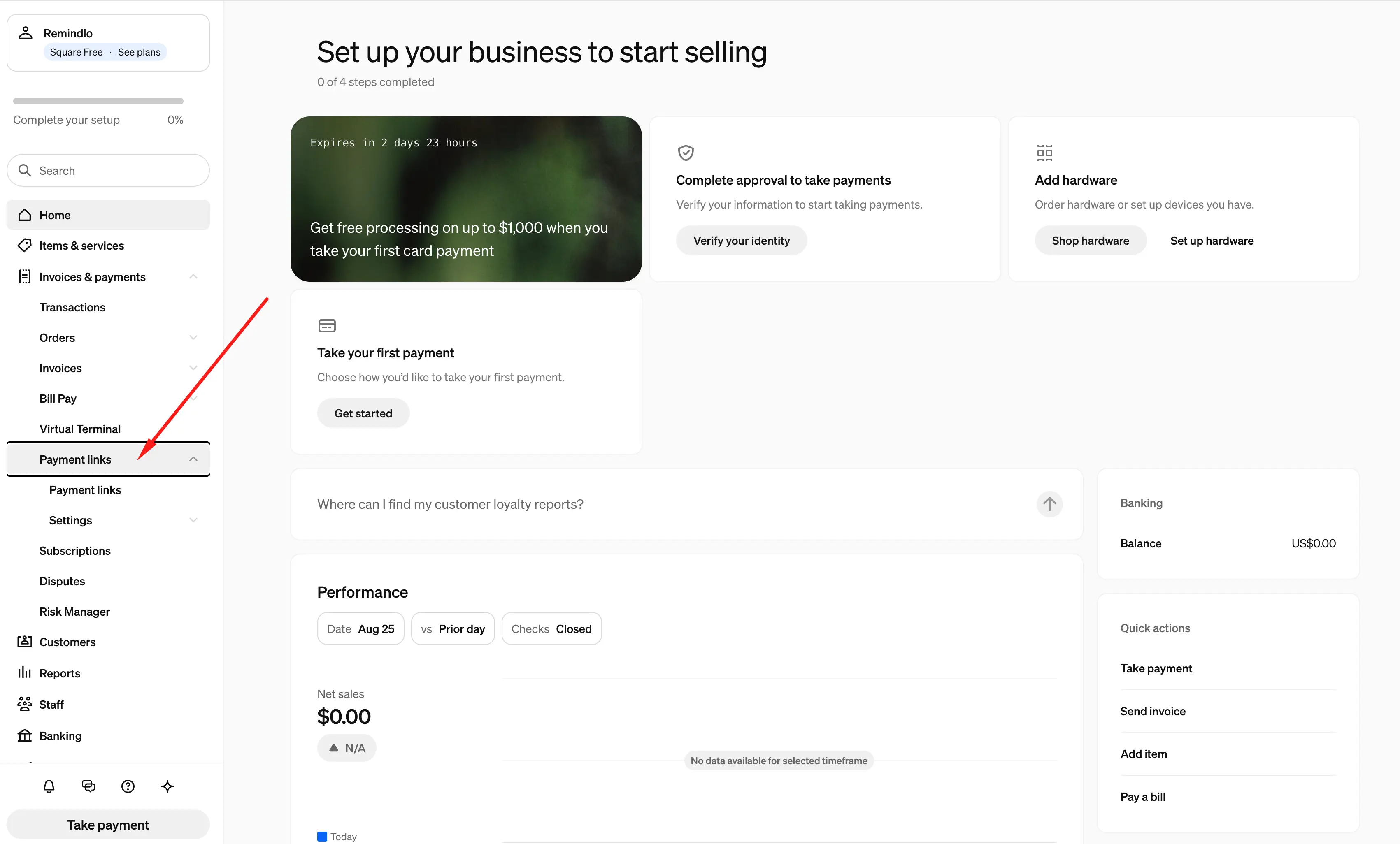
Go to Payments, then Payment links. Depending on your account this menu may read Payments and invoices or simply Payments and Orders.
Select Create link.
Choose the link type: Collect payment for an open or fixed amount, Sell item for a specific product, or Sell event or class.
Give it a title, set the amount and frequency, and add a description, an image, custom fields, tipping, or a redirect if you want them.
Select Save.
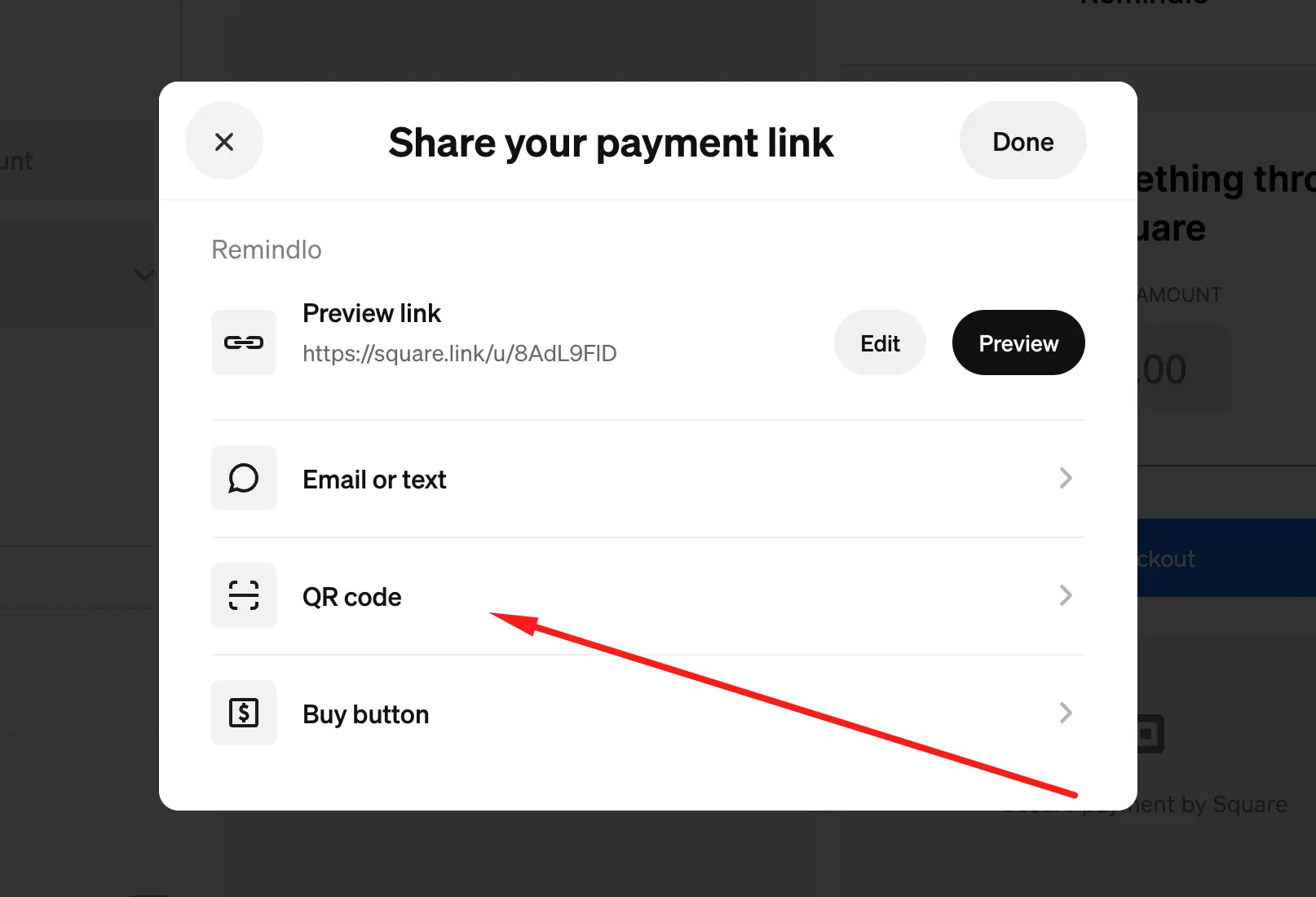
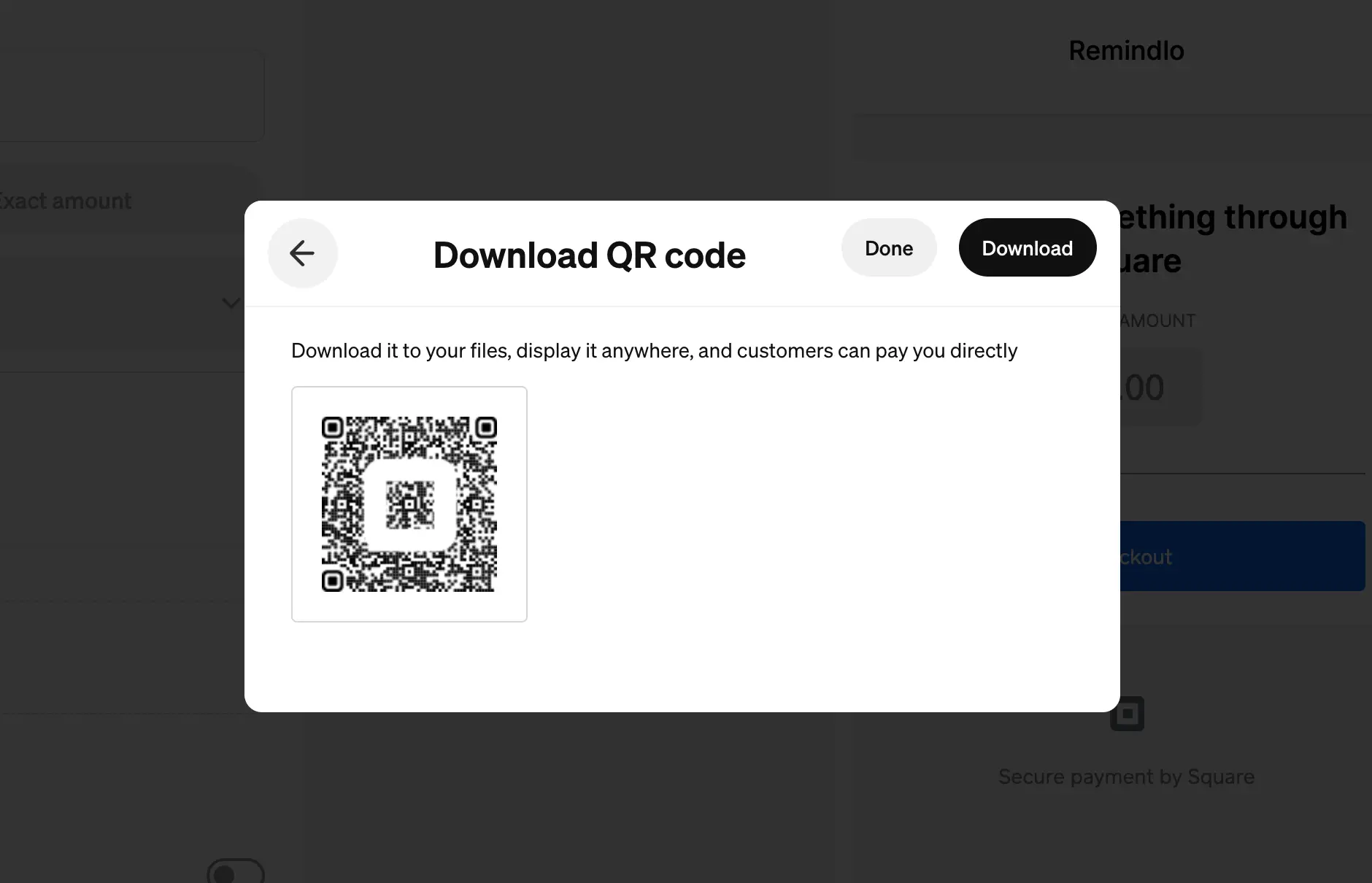
Next to the link you just made, select Share, then QR Code, then Download, then Done.
You can also create payment links from the Square Point of Sale app under More, then Payment links.
Square gives each link a short checkout URL in the format square.link/u/ followed by an id. That short URL is what the QR code encodes.
Watch this part. Because the code encodes that specific checkout URL, the code and the link are the same object. If you later deactivate or delete the payment link, Square's own support is explicit that the link becomes unavailable to everyone you shared it with. A card sitting on your counter has been shared with every customer who walks in. Deactivate the link and that card is dead, with no way to tell from the outside.
If you want the code on the counter to outlive the specific link behind it, that is what a trackable Square QR code solves, and it is covered further down.
How do I create a QR code for Square bookings?
Square Appointments has its own QR code, separate from payment links, and it points at your online booking site rather than a checkout page.
Open your Square Appointments dashboard.
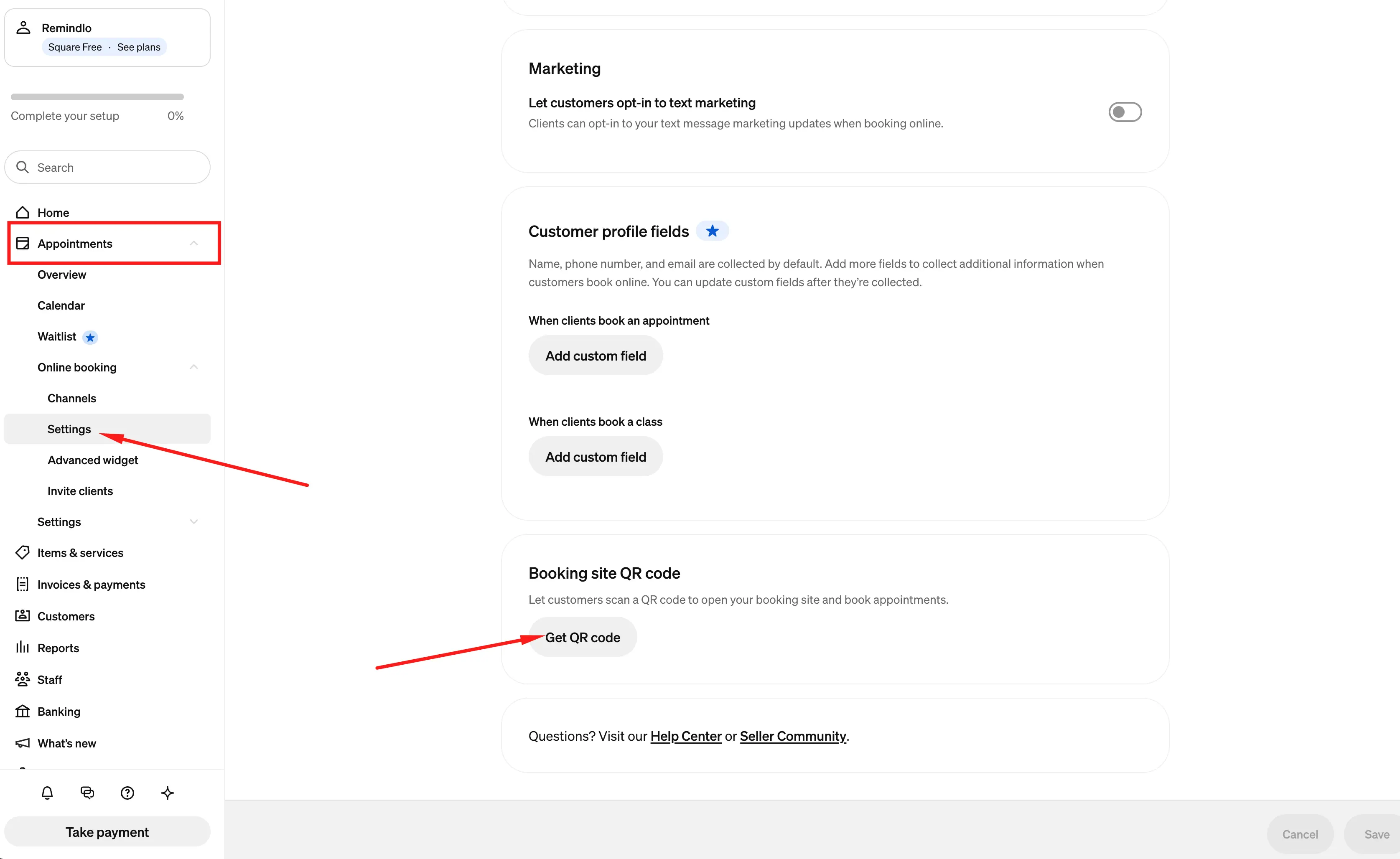
Go to Online Booking, then Settings.
Find Booking site QR code and select the location you want.
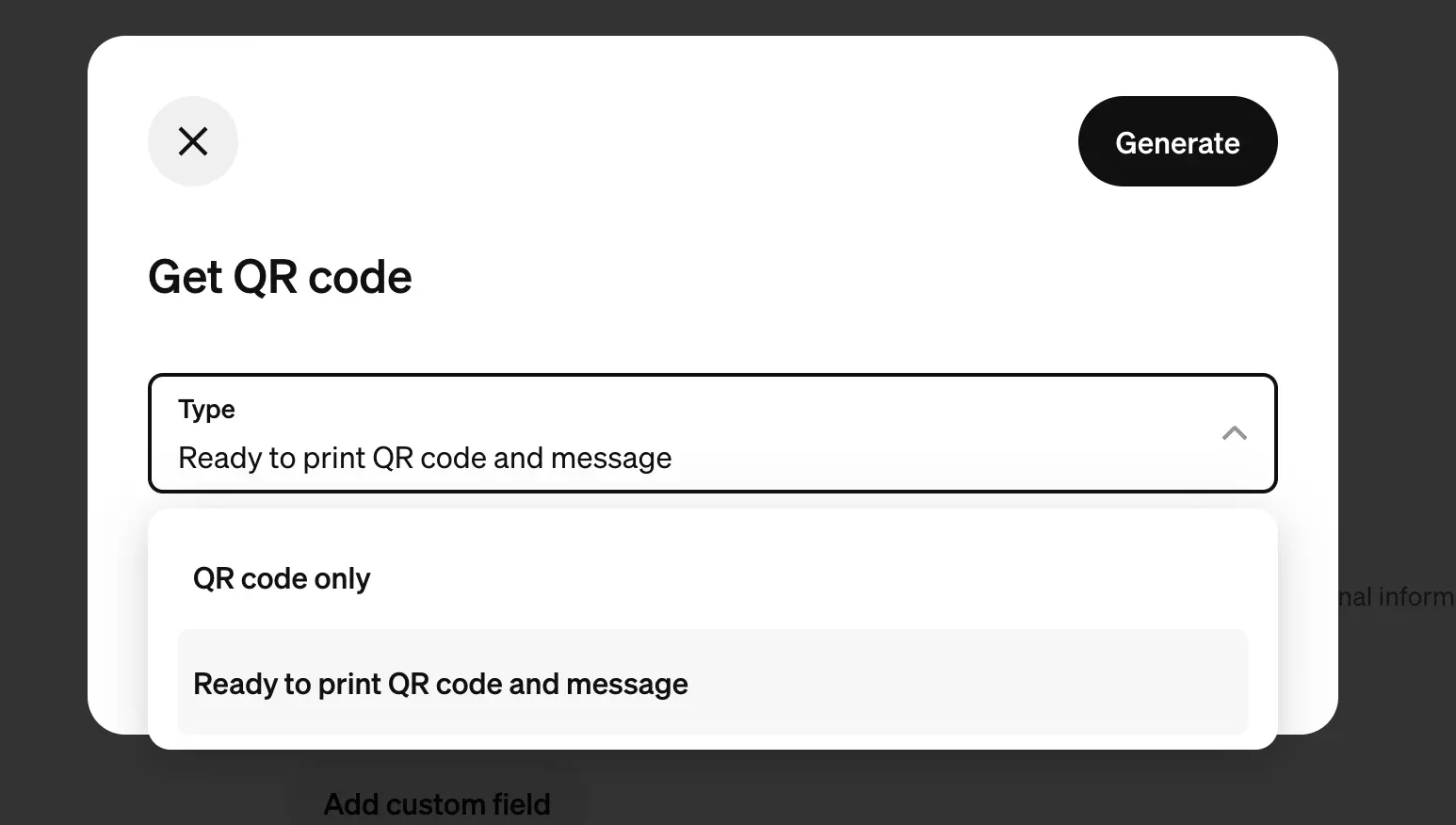
Choose QR code only, or the version that includes a printable message.
Select Get QR code, then save it as a PNG or print the page.
Two things to know before you commit it to signage.
The code is tied to a location. If you run two locations, that is two codes, and they are not interchangeable. Put the wrong one on the wrong window and customers book at the wrong shop.
It is one code per location, not one per spot. The same code goes on the counter, the door decal, the flyers, and the business cards. Square will show you the appointments that came in. It will not show you which of those four things brought them, because as far as the booking site is concerned, every scan is identical.
If bookings are the main job, our booking QR code page covers the same problem across Square, Calendly, and other scheduling tools.
How do I make a Square QR code for donations?
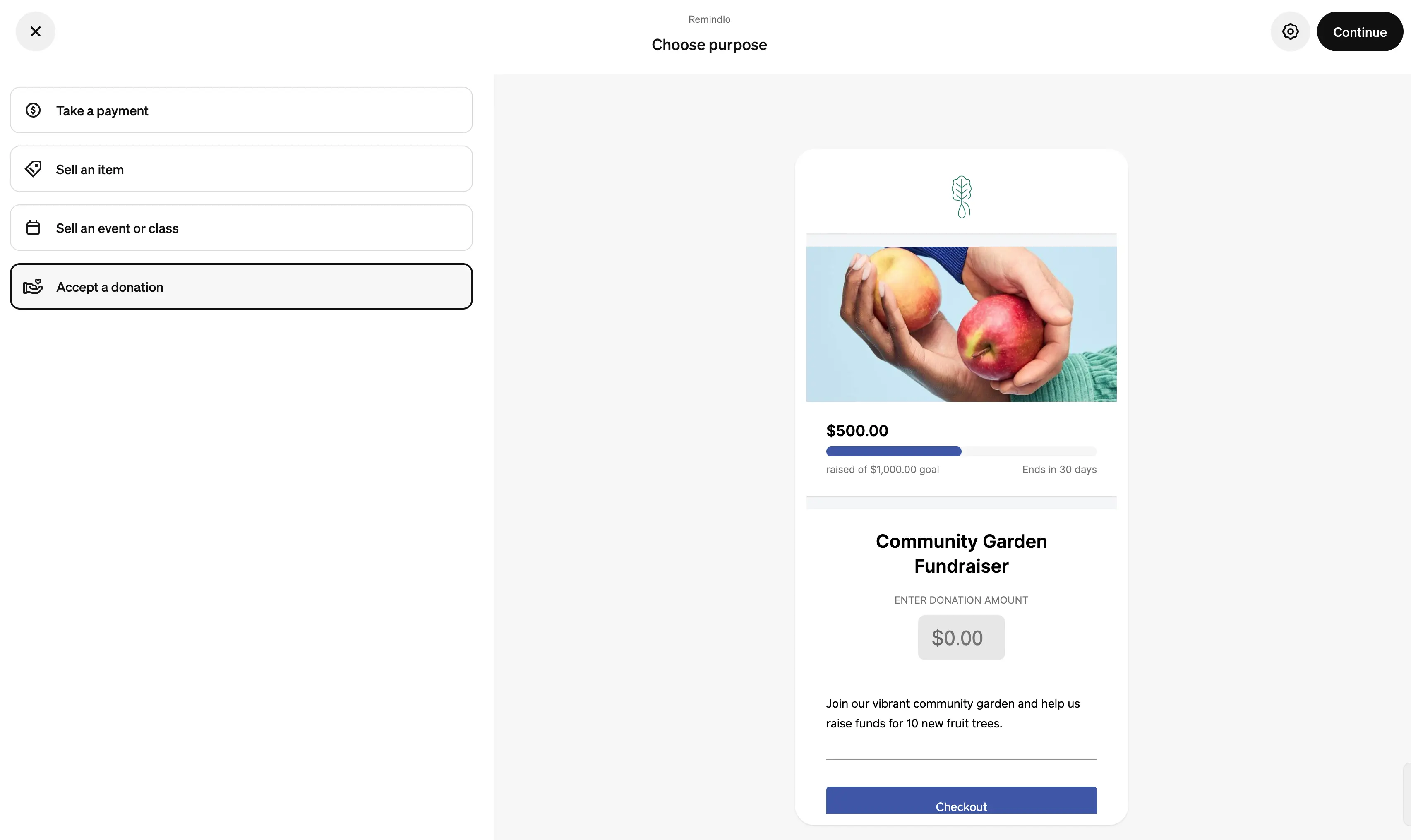
Square has no donation-specific QR, but a payment link has options to mark it as a donation, and it does the job. Create a payment link with the Accept a donation type and leave the amount open so people can choose what to give. Add a description that names the cause, then download the QR from the Share screen exactly as above.
If you take donations through more than one route, a card reader at events and a link online, see donation QR codes for how to keep those separate in your reporting.
What does Square actually tell you after someone scans?
This is where the honest limit sits, and it is worth being precise, because Square is not a black box here.
What Square does report: each payment link has a Total Sales figure, and you can filter your sales reports by Payment Links as a source. If your only question is how much money a given link brought in, Square already answers it and you do not need anything else.
What Square does not report: scans. Square sees a payment when someone pays. It never sees the scan that did not turn into one, and it has no concept of where the code was when it was scanned.
That gap matters more than it sounds, for three reasons.
Most scans are not payments. Someone scans your counter card, sees the amount, and decides to pay cash instead. Square records nothing. You cannot tell the difference between a code nobody noticed and a code everybody noticed and abandoned, and those two problems have opposite fixes.
You cannot compare placements. The counter card, the window decal, the flyer you paid to have printed, and the invoice footer all share one code and one number. There is no way to learn that the window earned four times what the flyer did, so there is no way to decide where the next one goes.
The print is only as durable as the link. Change your mind about the amount, restructure your services, or delete an old link, and the code you already put in the world stops working.
Square QR code options compared
Square's own QR | Static QR from a generator | Tracked redirect like Scanlo | |
|---|---|---|---|
Cost | Free with Square | Usually free | Free plan available |
Points at | A Square checkout or booking page | Whatever URL you paste | A short link you control |
Change the destination after printing | No, the link is the code | No | Yes, the printed code does not change |
Survives deleting the payment link | No | No | Yes, you re-point it |
Counts scans | No | No | Yes |
Separates counter from flyer from window | No | No | Yes, one code per placement |
Reports money taken | Yes, sales per link | No | No, Square still does that |
Read that last row carefully. A tracked redirect does not replace Square, and nothing here processes a payment. Square remains the thing that takes the money. The redirect sits in front of it and answers the question Square cannot: how many people scanned, and from where.
How to make a trackable Square QR code
The mechanism is simple. Instead of encoding your square.link URL into the printed pixels, you encode a short link that redirects to it. The pixels point at the short link forever. The short link points wherever you say, today and next year.
Create your Square payment link or booking site link as normal and copy its URL.
Create a code on Scanlo's Square QR page and paste that URL in as the destination.
Create one code per spot rather than one for everything: counter, window, flyer, invoice. Name each one after where it goes.
Download each code and put it where its name says.
Read the scan counts per placement and move the next one to whatever is working.
What that buys you, concretely:
The printed code keeps redirecting forever, on any plan, including after a lapse or a downgrade. We never switch off a code that is already in the world. Only editing is locked.
Editing where it points does not change the pixels, because the code encodes the short link, never the destination. Swap the Square link behind it and the card on the counter carries on working.
The free plan is 2 tracked codes, scan totals, and 30 days of history, with no card required. Placement comparison across codes and the country, device, and referrer breakdowns are on the paid plan.
Scans are cookieless and no raw IP is stored, so there is no consent banner to add to anything.
A website embed ships on every plan and separates scans that came from your site from scans that came off a physical placement, which stops your website inflating your counter card's numbers.
Frequently Asked Questions
Where is my Square QR code?
It depends which one you mean. Payment link codes live under Payments and Payment links in the Square Dashboard, behind the Share button next to each link. The booking code lives under Online Booking, then Settings, then Booking site QR code. Square Online ordering codes live in your Square Online settings.
Can I create a QR code with Square for free?
Yes. Square does not charge for generating the QR code itself in any of the three products. You still pay Square's normal processing rate on payments taken through it.
Does Square tell me how many people scanned my QR code?
No. Square reports sales per payment link and lets you filter sales reports by Payment Links as a source, but it does not count scans. A scan that did not end in a payment leaves no record anywhere in Square.
What happens to my printed Square QR code if I delete the payment link?
It stops working. Square's support states that a deactivated payment link becomes unavailable to everyone it was shared with, and a printed code is a form of sharing it. There is no warning on the card itself, so the failure is silent until a customer mentions it.
Can I use one Square QR code for payments and bookings?
Not natively. Payment links and the Appointments booking site are separate products with separate codes and separate destinations. If you want a single code that offers both, you need a link that leads to a page carrying both, which is the one code, several destinations approach.
Can I put a Square QR code on my website?
You can, but think about what a website visitor is holding. Nobody can scan a code on the screen they are reading it from, so a QR on a web page needs to be a tappable link as well as an image. That is worth separating in your numbers too, since a web tap and a counter scan are very different customers.
Do I still need Square if I use a tracked redirect?
Yes. The redirect does not take payments or hold your bookings. Square does both. The redirect only decides where the code sends people and counts how many arrived.
Bottom line
Square gives you a perfectly good QR code in three places, and for a single fixed payment link it may be all you need. The moment you have the same code in more than one physical spot, or you expect to change what it points at, you are printing something you cannot measure and cannot fix.
Create a trackable Square QR code with Scanlo, put a different one on each placement, and find out which spot is actually earning the scans: scanlo.io/square-qr-code